
Meet Sky
What Sky is
Sky is your voice analyst inside SkyAnalyst. You talk to her (or type), and she answers in plain language using your own data and the live market: your AI Traders, your trades, your results, your account, the Trend and Macro Agents, the economic calendar, the news and the web.
Think of Sky as a trading desk assistant who has read every screen in the app for you. Instead of opening five pages to find out how your agents did today, why gold moved, or whether your bridge is online, you ask one question and Sky goes and checks.
What makes Sky different from the AI Chat:
- She speaks. Answers come back as a short spoken reply, followed by the full written answer.
- She is hands free. Turn on Hey Sky and wake her by voice while you chart, read or trade.
- She reads your account. Sky does not guess. She looks up your real agents, trades, alerts and settings before she answers, and shows you what she checked.
- She can start work for you. Ask for a full analysis and Sky hands it to the Analyst Agent, then tells you when the report is ready. She can also get a fresh read from the Trend Agent.
- She follows you around the app. Sky lives in a side panel that stays open while you move between pages, and she knows which page you are on.
Sky is in Beta. She is rolling out to members in stages. If you do not see the Sky button yet, it has not reached your account.
Who has Sky
Sky appears for members whose account has Sky turned on. When it is on, you will see the Sky button in the app. If your account does not have Sky yet, nothing changes for you and the rest of SkyAnalyst works as before.
Languages
Sky speaks and writes in English and Spanish. She answers in the language you speak to her, and the panel follows your app language.
Getting Started
Opening Sky
Select the Sky button to open the SkyVoice panel.
- On a computer, Sky opens as a side panel on the right. The page moves over to make room, so you can keep working while she talks.
- On a phone, Sky opens as a sheet from the bottom of the screen.
Close the panel any time with the close button. Your conversation stays there when you open it again. If Sky answers while the panel is closed, the button shows a New reply mark.
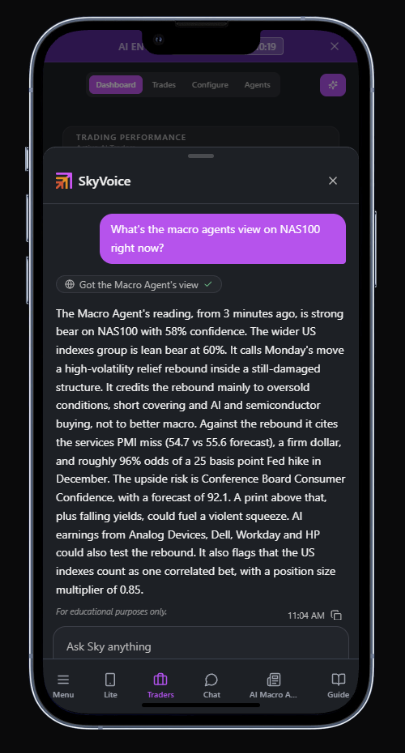
Sky on a phone
Typing or talking
You can use Sky two ways, and switch between them whenever you like:
- Type in the box at the bottom of the panel (Ask Sky anything). Press Enter to send, Shift + Enter for a new line.
- Talk with the voice button. Sky listens, answers out loud, and writes the full answer in the panel.
Typing is perfect in a quiet office or when you want to paste a number. Talking is faster when your hands are busy.
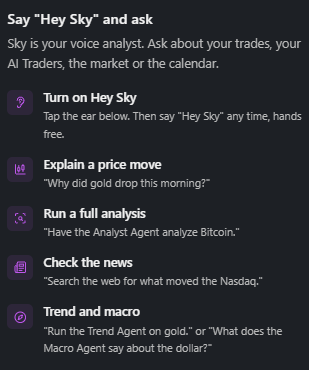
The Sky panel before your first question
The voice button: Off, Asleep, Listening
The voice button shows what Sky's voice is doing:
| State | What it means |
|---|---|
| Voice off | Sky's voice is off. Nothing is listening. Select the button to turn voice on. |
| Connecting | Sky is starting up. Start speaking if you like: what you say while she connects is kept and passed to her once she is ready. |
| Listening | Sky is awake and listening. Ask your question. Select the button again to stop. |
| Asleep | Sky went quiet after a short pause with no questions. Select the button (or say Hey Sky) to wake her. |
While Sky is talking, the orb shows Speaking. While she works on your question, it shows Thinking.
Sky goes to sleep on her own after a short quiet spell, so she is never left listening to the room. Each question you ask keeps her awake a little longer.
The first time you talk
The first time you turn on voice, Sky shows a short notice called Before you talk to Sky:
- Where your voice goes: to SkyAnalyst and the AI services that power Sky, to answer you.
- Nothing is kept: no audio is stored. Conversation text is deleted after 7 days.
- Only while awake: Sky listens only while she is awake.
Select Continue. Your browser then asks for permission to use the microphone. Choose Allow. If you choose Not now, you can still type to Sky at any time.
Hey Sky, hands free
Hey Sky lets you wake Sky with your voice, without touching the screen.
- Select the ear button in the Sky panel.
- Read the short notice and select Turn on Hey Sky. The first time, the app downloads the Hey Sky listener (about 8 MB).
- When the ear is on, just say "Hey Sky" followed by your question, for example: "Hey Sky, how are my agents doing today?"
How it works, in short:
- The Hey Sky listener runs on your own device. Nothing is recorded or sent until you say "Hey Sky".
- When you say it, Sky wakes and your question goes to Sky to be answered.
- The microphone stays on while SkyAnalyst is open, so Sky can hear "Hey Sky".
- If the ear turns amber, Sky cannot use the microphone right now (for example, it was blocked or taken by another app). Select it to see what to do.
- Turn Hey Sky off any time with the ear button.
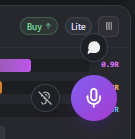
Ear (Hey Sky) and microphone
Tip: say "Hey Sky" clearly, then continue straight into your question. You do not need to wait for a sound.
How a Conversation Works
Spoken answer, written answer
Every voice answer has two parts:
- A short spoken answer: the headline, said out loud in a few sentences so you can keep your eyes on the chart.
- The full written answer in the panel: all the numbers, levels and detail, ready to read or copy.
Each written answer ends with a small footer: the time, a Copy answer button, and the reminder that Sky is for educational purposes only.
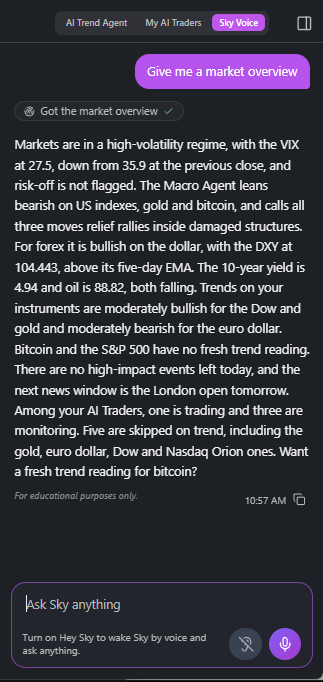
A market overview answer
Badges: what Sky is checking
While Sky works, you see a badge for each thing she looks up, for example Reading the market backdrop, Checking your open trades or Searching the web.
- A spinner means she is still checking.
- A green check means that lookup is done.
- A red x means that lookup failed. Sky tells you in her answer if something was missing.
Badges are your proof that Sky's answer comes from real data, not from memory. Ask her a big question and you may see five or six badges at once.
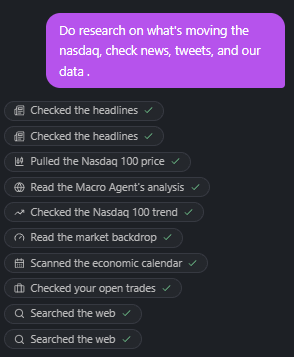
One question, ten checks
Interrupting, stopping and muting
- Interrupt by voice: just start talking. Sky stops and listens.
- Stop: select Stop to cancel an answer that is still being written.
- Mute the microphone: Sky stays awake but cannot hear you.
- Sound off: Sky keeps answering in writing but stops speaking out loud.
- Voice off: the close (x) control on the voice turns Sky's voice off. If Hey Sky is on, Sky goes to sleep instead, ready for the next "Hey Sky".
Sky knows where you are
Sky can see which page you are on: the dashboard, a trade, an agent, a report. So you can ask short questions about what is in front of you, like "What happened with this trade?" or "Why did this agent skip today?", without spelling out names and ids.
Ending a conversation
Say "bye", "that's all" or "thanks, goodbye" and Sky ends the call. She also goes to sleep by herself after a quiet spell. Your written conversation stays in the panel.
Sky voice runs in one browser tab at a time. If you open Sky voice in another tab, the first tab shows Sky voice moved to another tab.
What You Can Ask Sky
Sky has more than 40 lookups and actions behind her. You never need to know their names: just ask. Below is everything she can do, grouped by what you want to know, with example questions you can say word for word.
Markets right now
Sky reads the same live market data as the rest of SkyAnalyst.
- The full picture in one go: market regime, VIX, the US dollar index, market breadth, the 10 year yield and oil against yesterday's close, the macro bias by group, the trend on your instruments, and today's big events.
- "What's going on in the markets today?"
- Risk on or risk off: the regime from the banner, plus whether the VIX, the dollar, breadth, yields and oil are rising or falling.
- "Is the VIX rising?" "Is the dollar strong today?" "Are we risk on or risk off?"
- Where an instrument is now: live price, today's range and where price sits in it.
- "Where is gold right now?" "How far is the Nasdaq from today's high?"
- Recent candles: up to the last 24 hours on the 1, 5, 15 or 60 minute chart, with a summary of the move.
- "What has US30 done in the last four hours on the 15 minute?"
- Technicals per timeframe: EMA 20 and 50, RSI, MACD, ATR, VWAP, volume, the last swing with its Fibonacci levels, support and resistance.
- "What do the technicals say on EURUSD?" "Is gold above VWAP on the 5 minute?"
The Trend Agent
- The latest trend read: direction, strength, confidence, timeframe alignment and the key levels, including where the trend call is invalidated.
- "What's the trend on gold?"
- Trend history: how the trend has changed over the last hours (up to 72), and when it last flipped.
- "Has the Nasdaq trend flipped today?"
- A fresh read: if the latest read is old, Sky can run the Trend Agent once for you and report the new result.
- "Run the Trend Agent on US500."
Macro, calendar and news
- The Macro Agent's view for US indexes, gold, bitcoin or forex, and the full macro analysis when you want the detail.
- "What does the Macro Agent say about the dollar?" "Read me the full macro analysis for gold."
- The economic calendar for today, tomorrow or the week, filtered by currency.
- "What's on the calendar today?" "Any USD news this week?"
- News windows: whether you are inside a high impact news window or the hour before the London or New York open, and when the next one starts.
- "Is it safe to trade right now, any news coming?"
- Latest headlines and posts: a live feed of market headlines (CNBC, Bloomberg, investingLive, Investing.com, MarketWatch, the Fed, the ECB, the White House) and Donald Trump's Truth Social posts, updated within minutes. Sky checks this first for news questions.
- "Any headlines on gold in the last hour?" "What did Trump post today?"
- The market brief: the latest written news brief.
- "Give me the latest market brief."
- Web search: when the headlines and the app's data do not explain something, Sky searches the web.
- "Why did gold just spike?" "What did the Fed chair say today?" "Search the web for what moved the Nasdaq."
Your AI Traders
- How your agents are doing: each agent's state (trading, monitoring, analyzing, waiting), its latest commentary, today's result and its live trades, just like the dashboard cards.
- "How are my agents doing today?"
- Your list of agents: masters, copies and your own custom agents.
- "List my custom agents."
- One agent in detail: instruments, model, schedule, next run, last skip reason, auto trade, and its full analysis prompt.
- "Show me Orion's prompt." "When does my gold agent run next?"
- Sessions and schedule: which market sessions an agent trades (Tokyo, London, New York) and its run times in your time zone.
- "Which sessions does Atlas trade?"
- Recent runs: what each run did (traded, no setup, skipped and why), and a link to its report.
- "Did Atlas trade this morning?" "Why did Orion skip today?"
Performance and results
- Your win rate: today, week to date, month to date or year to date, for all agents, masters only or your own agents.
- "What's my win rate this week?"
- Win rates per agent: TP1, TP2 and TP3 win rates and average R for each agent.
- "Which agent has the best TP2 win rate?"
- A drilldown of closed trades: wins, losses, net R, longest losing streak, max drawdown, and the trades themselves with the agent that opened each one.
- "Go through my trades from last month." "How did my Orion trades do this week?"
- Risk statistics: expectancy, profit factor, Sharpe ratio and max drawdown for one agent.
- "What's the profit factor of Atlas?"
Your trades and alerts
- Open trades: everything waiting, in the zone, pending confirmation or approved.
- "What trades are open right now?"
- Which open trade looks best: Sky ranks your open trades on live performance, alignment with the trend, distance to entry, time left and the AI Entry Evaluator's confidence.
- "Which of my open trades looks best?"
- The story of a trade: why it opened, which agent opened it, each AI entry decision and how it ended.
- "Tell me the story of my last Orion trade."
- Trade setups from a report: entry zone, stop and up to three targets.
- "What's the entry, stop and targets in that report?"
- Alerts: new and unread alerts (zone entries, AI entries, stop loss, take profit, expiry).
- "Any new alerts?" "What did I miss?"
- Bridge delivery problems: alerts that did not reach your Trading Bridge, and the reason.
- "Why didn't my bridge take that trade?"
Reports and past analyses
- Read a report: the full text of an Analyst Agent or AI Trader report, out loud or in writing.
- "Read me the latest Atlas report."
- Find a past analysis: search your Recent Analyses by topic or instrument.
- "Find my analysis about gold from yesterday."
- Your shortcut prompts: what each New Analysis shortcut tile asks the Analyst Agent.
- "What does my Atlas shortcut ask?"
- Start a full analysis: see the next section.
Your account and setup
- Your account: plan, credits left, and trial days left.
- "How many credits do I have?" "When does my trial end?"
- Credit use: what you spent over the last days.
- "How many credits did I use this week?"
- Trading Bridge status: each paired device, whether it is online, and when it was last seen.
- "Is my bridge online?"
- Telegram: whether Telegram is connected and which alerts go there.
- "Is Telegram connected?"
- Alert settings: how the alert bar and page banners are set.
- "How are my alerts set up?"
- Your trading pairs and announcements.
- "Which pairs do I have?" "Any announcements?"
Help and learning
- How SkyAnalyst works: Sky searches this guide for you.
- "How do I install the bridge on MetaTrader 5?" "How do master agents work?"
- Trading knowledge: concepts, indicators and terms, explained simply.
- "What is a fair value gap?" "Explain profit factor." "What does a 4.0 confidence mean?"
Running a Full Analysis with Sky
How the handoff works
Sky is quick and conversational. When you want the deep, written, step by step analysis with trade setups, Sky hands the job to the Analyst Agent, the same one behind the AI Chat.
1. Ask for it: "Have the Analyst Agent analyze bitcoin." or "Run a full analysis on the Nasdaq." Sky may also offer it herself after you ask a forecast or trade question.
2. Say yes (or "go ahead", "do it").
3. Sky starts the analysis. The panel shows Starting analysis, then Analysis running. You can keep talking to Sky or keep working meanwhile. Select Cancel if you change your mind.
4. When it finishes, Sky shows an Analysis summary and, if you are talking to her, tells you out loud that it is ready.
5. The full report is saved in Recent Analyses in the left menu, like any other analysis.
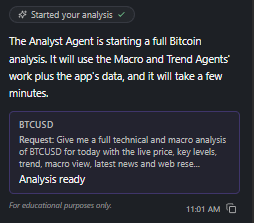
The handoff card
Orion, Atlas or general
If you do not say which method you want, Sky asks: "Orion setup, Atlas setup, or general analysis?"
- Orion setup or Atlas setup uses that master's shortcut prompt, so you get the same method the Orion or Atlas agents use.
- General analysis is a full standard analysis of the instrument.
You can also say it up front: "Do an Orion setup on gold."
Discuss with Sky
Under answers in the AI Chat you will find a Discuss with Sky button. Select it to bring that report into Sky and ask about it by voice: "What's the weakest part of this setup?", "Is the macro backdrop with it or against it?". When an analysis that Sky started is ready, select Discuss this report to talk it through.
A Day with Sky
Here are a few ways members use Sky. Each one chains several lookups into one short conversation.
Morning briefing
Before the New York open:
- "Hey Sky, what's going on in the markets today?"
- "Any news windows before the open?"
- "What's the trend on my pairs?"
In under a minute you know the regime, the risk events and the trend on everything you trade.
Is this trade worth it?
- "Which of my open trades looks best?"
- "Tell me the story of the gold one."
- "Is the dollar helping it or hurting it?"
Why did price move?
- "Why did the Nasdaq just drop 200 points?"
- "Do research on what's moving the Nasdaq: check the news, the posts, and our data."
For a question like this Sky chains everything she has: the latest headlines and posts, the live price, the Macro Agent, the Trend Agent, the market backdrop (VIX, dollar, yields, oil), the calendar, your open trades and, when needed, the web. Then she pulls it together in one answer: what moved, what the agents think, the key levels and the next catalyst.
She also tells you how solid each piece is. Wire headlines and your own data count as facts; rumours from the web or social media are flagged as unconfirmed.
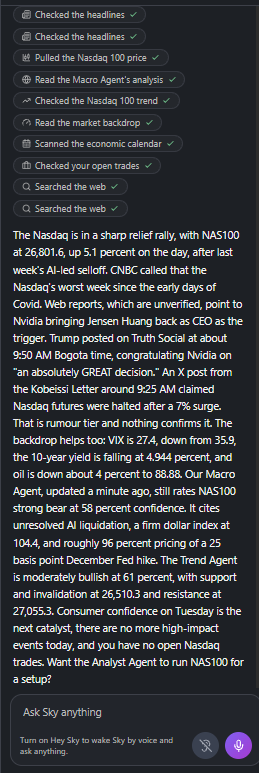
A research answer
End of day review
- "How did my agents do today?"
- "Go through today's losses."
- "What's my win rate this month?"
Hands free while charting
Turn on Hey Sky and keep your chart full screen:
- "Hey Sky, where is VWAP on gold on the 5 minute?"
- "Hey Sky, what's the nearest resistance on US30?"
Get a full analysis by voice
- "Should I be looking for longs on gold?"
- Sky answers and offers a full analysis. "Yes, Orion setup."
- Keep working. Sky tells you when the report is ready.
When something looks wrong
- "Why didn't my bridge take the last trade?"
- "Is my bridge online?"
- "How do I reconnect it?"
Away from the desk
On your phone:
- "Any new alerts?"
- "What trades are open right now?"
What Sky Will Not Do
- She does not place, close or change trades. Sky reads your trades; she never sends orders.
- She does not change your settings or agents. She can read them and explain them. To change something, use the page in the app. The only things Sky starts for you are a full Analyst Agent analysis (after you say yes) and a fresh Trend Agent read.
- She does not give financial advice. Sky explains data and analysis for educational purposes. Decisions are yours.
- She does not guess. If data is old, missing or a lookup fails, Sky says so.
- She only sees your own data. Sky works as you, with your access. She cannot see other members' accounts.
Credits and Privacy
Credits
Sky deducts from your overall credits, the same balance used by the rest of SkyAnalyst. You can ask Sky "How many credits do I have?" at any time.
Privacy
- No audio is stored. Your voice is used to answer you and is not kept.
- Conversation text is deleted after 7 days.
- Hey Sky runs on your device. Nothing is recorded or sent until you say "Hey Sky".
- Sky listens only while she is awake (or, with Hey Sky on, only for the words "Hey Sky").
- Sky only reads your own data, with the same access you have in the app.
Troubleshooting
I don't see the Sky button. Sky is in Beta and rolling out in stages. If your account does not have it yet, it will appear when it does.
Sky can't hear me. Check that your browser allows the microphone for SkyAnalyst (the lock or camera icon in the address bar), that the microphone is not muted in Sky, and that no other app is using it. Then select the voice button again.
The ear is amber. Sky cannot use the microphone right now. Select the ear and follow the steps, usually allowing the microphone in the browser.
"Hey Sky" doesn't wake her. Make sure the ear is on and SkyAnalyst is open. Say "Hey Sky" clearly at a normal speed. Chrome or Edge on a computer work best.
"Sky voice moved to another tab." Sky voice runs in one tab at a time. Use the tab where you opened her last, or select the voice button in this tab to bring her here.
"The voice connection was lost." Your connection dropped. Select the voice button to start again. If your credits ran out, add credits first.
Sky heard the wrong words. Repeat the question, or type it. Background noise and speakers near the microphone can confuse her; headphones help.
Sky answered in the wrong language. Ask again in the language you want, or say "answer in English" / "responde en español".
Sky in Claude and Other AI Apps (MCP)
Coming soon. This section describes a feature that is being prepared. The connection steps will be added here when it opens.
What MCP is
MCP (Model Context Protocol) is an open standard that lets AI apps like Claude Desktop, Claude Code and other AI assistants use outside tools. With the SkyAnalyst MCP connector, those apps will be able to use the same lookups Sky uses, with your own SkyAnalyst data.
What you will be able to do
Ask your AI app questions that pull live from SkyAnalyst, and let it build things with the answers. For example:
- "Make a table of my agents' TP1 win rate this month and flag any under 50%."
- "Compare the trend and the technicals on gold, the Nasdaq and EURUSD, and tell me which one is the cleanest setup."
- "Read my last three Atlas reports and summarise what they keep getting right and wrong."
- "Check today's calendar and my open trades and warn me about any trade near a news window."
Everything in What You Can Ask Sky is available over MCP, except starting a full Analyst Agent analysis, which stays inside SkyAnalyst.
Connecting
Coming soon. You will create a personal access token in Settings, then add SkyAnalyst to your AI app:
- Claude Desktop: add the SkyAnalyst connector with your token.
- Claude Code: add it with one command.
- Other MCP apps: use the SkyAnalyst MCP address and your token.
Each MCP lookup deducts from your overall credits, like Sky.
Available tools
When you connect, your AI app will see these tools:
| Group | Tools |
|---|---|
| Markets | market_overview, get_market_regime, get_instrument_state, get_price_tape, get_technicals |
| Trend Agent | get_trend, get_trend_history, run_trend_agent |
| Macro and news | get_macro_view, get_macro_brief, get_calendar, get_news_windows, get_news_briefs, search_headlines, web_search |
| AI Traders | get_agents, get_automations, get_automation_detail, get_automation_session, get_agent_runs |
| Performance | get_fleet_performance, get_automation_performance, get_drilldown, get_trading_stats |
| Trades and alerts | get_open_trades, assess_open_trades, get_trade_story, get_trade_setups, get_alerts, get_dispatch_failures |
| Reports | read_analysis, search_conversations, get_shortcut_prompt |
| Account | get_account_status, get_credit_ledger, get_bridge_status, get_telegram_status, get_alert_settings, get_user_pairs, get_announcements |
| Help | search_guide |
All tools are read only, except run_trend_agent, which asks the Trend Agent for a fresh read.
Keeping your token safe
- Treat your access token like a password. It is shown once, when you create it.
- Anyone with the token can read your SkyAnalyst data through MCP.
- If a token leaks, or you stop using an app, revoke it in Settings. It stops working at once.
FAQ
Is Sky the same as the AI Chat? No. The AI Chat is where the Analyst Agent writes full analyses. Sky is a fast, spoken assistant that reads your whole account and the market, and can start an Analyst Agent analysis for you.
Does Sky trade for me? No. Sky never places, closes or edits trades. Your AI Traders and the Trading Bridge do that, under the settings you choose.
Can I use Sky without a microphone? Yes. Type to her in the panel. Everything works the same, without the spoken part.
Does Sky work on my phone? Yes. Sky opens as a sheet at the bottom of the screen. Voice works in a mobile browser that allows the microphone.
Is Sky always listening? Only while she is awake. With Hey Sky on, a small listener on your device waits for the words "Hey Sky" and sends nothing until it hears them.
How long are my conversations kept? Conversation text is deleted after 7 days. Audio is never stored. Full analyses Sky starts are saved in Recent Analyses like any other analysis.
Why did Sky say she couldn't find something? Sky only answers from real data. If a lookup failed or the data is not there yet (for example, an agent has no closed trades), she tells you instead of guessing.