
Lite Mode: Glance-and-Go Trading on Mobile
🚧 Coming Soon — not released yet. Lite Mode is in active development and is not available to users. The chapter below is a preview of what is being built. We will announce when it ships.
Lite Mode is a stripped-down, mobile-first interface for SkyAnalyst designed for the moments when you are away from your desk and just need to see what the AI is doing at a glance. It surfaces the same live signals, the same AI Trading Agents, and the same trading bridge as the full app, but shaped for a phone screen, a two-second look, and a thumb.
If the full app is your trading cockpit, Lite Mode is the dashboard on the steering wheel.
1. What Lite Mode is and who it is for
Lite Mode is built around a single question: "What should I do, right now, with the smallest amount of input?"
Use it when:
- You are on the move and want to check whether the AI has fired any new signals.
- You want a quick tap-through to the Trade Detail without the full chat-plus-charts experience.
- You want to flip alerts or auto-trade on a single instrument from your phone without navigating the desktop AI Trading Agents hub.
- You want to confirm the next scheduled trading window without opening a calendar.
Lite Mode is not a replacement for the full app. It does not include:
- The AI chat surface.
- The Market Brief deep dive.
- Wizards to create or edit AI Trading Agents.
- The full settings page with profile, language, theme, etc.
For all of those, you switch back to the full app via the Full App tab in the bottom bar (covered in section 10).
Design principles you will notice
- One screen, one job. Each page answers one question.
- No deep navigation. Everything is two taps deep, max.
- No typing. The only input controls are toggles, taps, and a couple of dropdowns.
- Big touch targets. Tiles, pills, and tab-bar icons are all sized for thumbs.
- Dark by default. The Lite scope ships its own visual tokens (
--lite-surface,--lite-stroke,--lite-glass) tuned for low-light, on-the-go viewing.
2. How to enter Lite Mode
Entry path
Open Lite from the bottom tab bar (mobile) or the Lite link in the burger menu (desktop). Any authenticated SkyAnalyst account can use Lite. The page loads inside a phone-frame layout regardless of device width.
Returning to the full app
Inside Lite Mode, the rightmost tab in the bottom bar is labeled "Full App" (icon: a maximize/expand square). Tapping it navigates to the standard desktop-class interface. We cover this more in section 10.
Persistence
Lite Mode does not store an "I prefer Lite" flag. Every visit is intentional — open the Lite URL, you get Lite; open the full app URL, you get the full app. This gives you total control over which interface you are looking at.
3. Lite Signals page
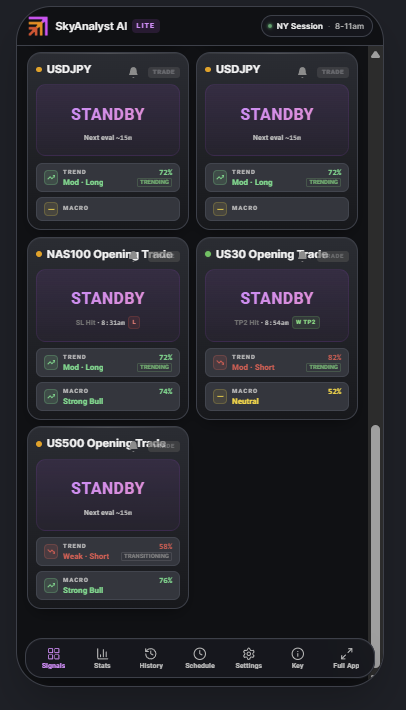
The Signals page is the default landing when you open Lite Mode. It is a 2-column grid of instrument tiles, one per active AI Trading Agent. Each tile is a self-contained snapshot of what the AI thinks about that instrument right now.
Anatomy of a tile
Read a tile top to bottom:
- Directional accent bar — the thin glowing bar across the very top.
- Green = BUY signal active.
- Red = SELL signal active.
- Hidden (no bar) = STANDBY, no active entry.
- Dimmed = signal has expired.
- Top-right controls:
- Bell icon — toggle alerts for this trade. Filled = on. Outline (with slash) = muted.
- TRADE chip — toggle automated execution via the Trading Bridge. Bright = auto-trade ON. Faded = manual mode (alerts only).
- If the TRADE chip is locked (greyed out with no opacity change on tap), auto-trade for this instrument is managed at the AI Trading Agent level, not per-trade.
- Freshness dot + instrument name — left side of the tile header.
- Green dot = data is less than 5 minutes old.
- Amber dot = data is 5 to 15 minutes old.
- Gray dot = data is over 15 minutes old.
- The instrument is the display name (e.g.,
NAS100,XAUUSD,USDJPY). If the AI Trading Agent covers more than one instrument, you will see a small+Nchip showing how many extras are bundled.
- Direction badge — the prominent center pill that reads BUY, SELL, or STANDBY.
- Below the label, an inline timestamp tells you how long ago the signal fired (or when the AI last refreshed its view).
- For closed trades, a small outcome indicator shows whether TP1/TP2/TP3 hit, or whether the stop was taken.
- Trend pill — first of two stacked agent summaries.
- Glyph (up arrow / down arrow / minus) for direction.
- "TREND" label.
- Confidence percent on the right.
- Bias text (e.g., "Strong · Long").
- A small regime badge: STRONG, TREND, TRANS, CHOPPY, RANGE.
- Macro pill — second agent summary.
- Glyph + "MACRO" label + confidence percent + bias text (e.g., "Bull", "Lean Bear", "Strong Bull").
What tapping does
- Tap the tile body → opens the TileDetailSheet (the full trade detail drawer). See section 9.
- Tap the Trend pill → opens the TrendDetailSheet for that instrument.
- Tap the Macro pill → opens the MacroDetailSheet for the macro group that instrument belongs to.
- Tap the bell → toggles the AI-entry alert on/off without opening any sheet.
- Tap the TRADE chip (only when auto-trade is currently OFF) → opens an inline confirmation dialog before enabling auto-execution. Tapping it again when it is ON disables auto-execution immediately.
Cross-link: for a printable legend of every dot, badge, and color on the tile, see the Lite Key page (section 8) or tap the Key tab in the bottom bar.
Loading, empty, and error states
- Loading: the grid renders a set of pulsing skeletons. The number of skeletons is remembered from your last visit so the layout does not jump around.
- Empty: if you have no active AI Trading Agents (no master copies and no customs), the page shows a single card explaining the dashboard is empty and a button to open the AI Trading Agents hub to create one.
- Error: a single red-titled card shows the error message. The most common cause is a brief connectivity blip — pull to refresh or come back in a few seconds.
4. Lite Stats page
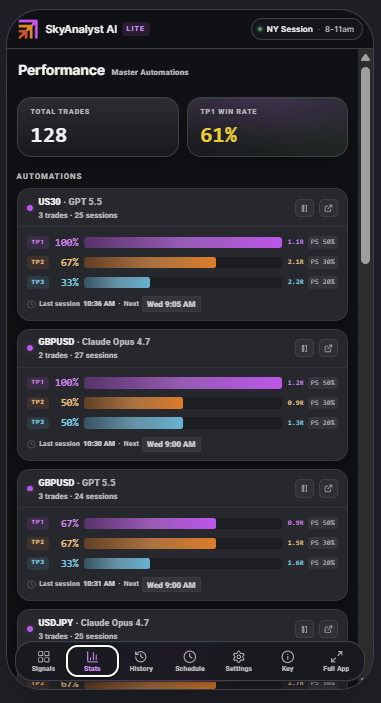
Tap Stats in the bottom bar to reach the Lite Stats page. This page is a mobile-shaped version of the Master AI Trading Agents performance view.
Layout
- Section label — "Performance · Master AI Trading Agents" at the top.
- Summary strip — two large cards across the top:
- Total Trades — total trade count across all displayed agents.
- TP1 Win Rate — average TP1 win rate across agents. The number is color-coded:
- Green ≥ 65 percent.
- Yellow 45–64 percent.
- Red < 45 percent.
- Agents list — a vertical stack of cards, one per Master AI Trading Agent, using the same
AutomationPerformanceCardcomponent the full app uses on the right rail. Each card shows the agent name, last activity, and TP1/TP2/TP3 win rates.
What gets included
The Stats page filters to Master AI Trading Agents only — that is, agents that are either masters (is_master = true) or copies of a master (master_automation_id set). Pure custom AI Trading Agents are intentionally hidden here to keep the at-a-glance view focused. You can still see custom performance in the full app on the Configure tab.
What tapping does
- Tap any AI Trading Agent card → opens the StatsDetailSheet (section 9), which is a mobile-shaped version of the full Performance Modal with all 4 tabs (Activity / Performance / Trades / Strategy).
Loading and error states
- Loading: skeleton rows for both summary cards and the list (4 by default).
- Error: a short message "Failed to load performance data."
- Empty: "No agent performance data available." This usually means none of your AI Trading Agents have closed any trades yet.
5. Lite History page
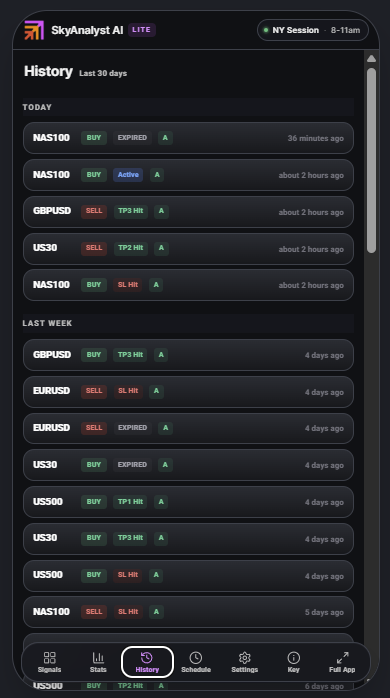
Tap History in the bottom bar to reach the Lite History page. This is your 30-day trade history as a single scrolling list.
Window
The page loads the last 30 days of monitored trades for your account. Older trades are not displayed in Lite — switch to the full app's Trades tab for unlimited history.
Layout
Trades are grouped by period (Today / Yesterday / This Week / Last 30 days), with sticky group headers that hover at the top of the viewport as you scroll. Each group renders its trades as compact rows.
Anatomy of a trade row
Each row, left to right:
- Instrument name — short display (e.g.,
NAS100). - Direction badge —
BUY(green) orSELL(red). - Status badge:
- Blue = currently open / active.
- Emerald = TP1, TP2, or TP3 hit (the label tells you which).
- Red = stop loss hit.
- Zinc gray = expired or cancelled without entry.
- Grade badge (when available) —
A(emerald),B(yellow), orC(gray). Derived from the AI's approval-snapshot confidence at trade creation: ≥ 8 = A, 6–7.9 = B, 1–5.9 = C. Lite collapses the canonical 5-grade scheme (A+, A, B+, B, C) to a 3-badge view (A, B, C) for at-a-glance reading. Confidence values are the same; the visible label is coarser. - Spacer, then relative time (e.g., "2h ago", "yesterday").
Loading, empty, and error states
- Loading: six skeleton rows.
- Empty: "No trade history available."
- Error: "Failed to load trade history."
What is not on this page
There is no tap-through to a per-trade detail sheet from a History row in the current build — History is a read-only scrolling summary. To dig into a specific historical trade, switch to the full app and open it from the Trades tab.
6. Lite Schedule page
Tap Schedule in the bottom bar to reach the Lite Schedule page. This page explains when your AI Trading Agents actually run, in plain English.
Layout
- Section label — "AI Trading Agent Schedule · How your AI signals work".
- Timeline bar — a horizontal strip showing the four states of the day:
- 8:00–8:30 AM EST — Pre-Market Scan (green slice).
- 8:30–10:00 AM EST — Market Open Skip (red slice, "Market Open Skip" overlay).
- 10:00 AM–12:00 PM EST — Primary Session (green slice, the bulk of the bar).
- 12:00 PM onward — OFF (dimmed slice).
- Section cards — one per window, in order:
- Pre-Market Scan (8:00–8:30 AM) — green dot. The AI scans all 6 markets pre-open, evaluating overnight price action, macro conditions, and trend alignment.
- Market Open Skip (8:30–10:00 AM) — red dot, red left accent. The AI deliberately pauses through the most volatile 30–90 minutes of the US open. Spreads widen, liquidity is thin, fills are unreliable.
- Primary Session (10:00 AM–12:00 PM) — green dot. The core window. The AI runs evaluations every 30 minutes across all 6 markets.
- High-Impact News Events — amber dot with BLOCKED badge. When CPI / NFP / FOMC / GDP / Unemployment Claims or similar are scheduled, the AI holds new trades and posts a pending retry that resumes after the event passes.
- No Trades Generated? — gray dot. Explains that a no-signal day is normal and means the AI is staying out of low-quality setups.
- In Summary — a purple-accented card with a one-paragraph recap.
Why this page exists
A common first-week question is "Why didn't the AI fire today?" The Schedule page answers it without you needing to message support, check the changelog, or scroll the audit log. The Lite Schedule view is purely informational — there are no controls on this page; schedules are configured per-agent in the full app's wizards.
7. Lite Settings page
Tap Settings (gear icon) in the bottom bar to reach the Lite Settings page. This page exposes a curated subset of the full Settings page — the controls you are most likely to touch from your phone.
What is on the Lite Settings page
In order from top to bottom:
- Alerts — the same
AlertsSettingsCardfrom the full app:- Global Alert Bar mode (both / entries only / zone only / disabled).
- Automations Page Banners mode.
- Toast notification duration (5 / 10 / 30 s).
- Automated Trading section:
- A "How It Works" explainer card with the 3-step path: Download Trading Bridge → Install the Bot → Pair & Trade. Includes a "Windows only" note.
- The same
TradingBridgeSettingsCardfrom the full app: pairing code generation, paired-device list with last-seen and latency, disconnect controls.
- Webhooks — the same
WebhookSettingsCardfrom the full app: paste URL, test, security note. - Subscription —
LiteSubscriptionSection, a compact view of your current plan and links into the billing portal. - More — three quick links:
- Guide -> the trading guide & AI courses.
- Tile Guide -> the legend for tile elements (a separate quick reference).
- Switch to Full App -> opens the full app.
- Sign Out — a red outline button at the bottom.
What is not on the Lite Settings page
These are intentionally only available in the full app's Settings:
- Profile (name, email, password, language, theme).
- Telegram account linking.
- Recent Chats management.
- Cost & Credits top-up flows beyond the subscription summary.
If you need any of those, tap Switch to Full App (or the Full App tab in the tab bar) and head to the desktop Settings.
8. Lite Key page
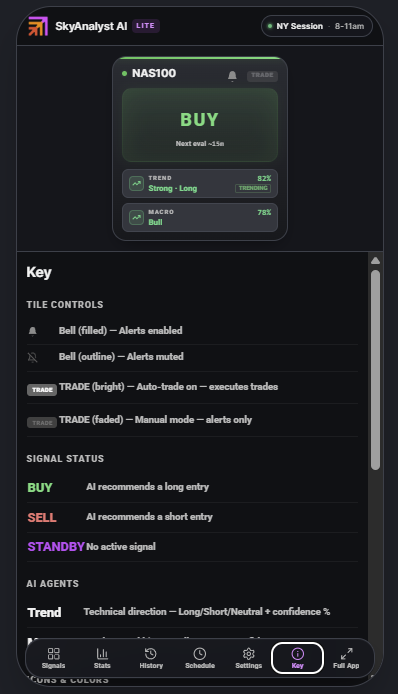
Tap Key (info icon) in the bottom bar to reach the Lite Key page. This is the legend for every element you see on a tile in the Signals page.
Layout
- Sticky example tile — a half-width
LiteInstrumentTilerendered at the top with realistic placeholder data (NAS100, BUY, Macro: Bull 78%, Trend: Strong · Long 82%, regime: TREND). It stays pinned as you scroll so you can match the legend rows to the live element. - Tile Controls — bell (filled vs outline), TRADE chip (bright vs faded).
- Signal Status — BUY (green), SELL (red), STANDBY (magenta).
- AI Agents — Trend (technical direction + confidence) and Macro (fundamental bias + confidence).
- Icons & Colors:
- Freshness dots: green (<5m) / amber (5–15m) / gray (>15m).
- Direction glyphs: bullish (green up arrow), bearish (red down arrow), neutral (yellow dash).
- Market Regime (from the Trend Agent):
- STRONG — clear strong trend.
- TREND — directional movement.
- TRANS — market transitioning.
- CHOPPY — erratic; reduce size.
- RANGE — range-bound.
- Footer — "Tap any tile for full AI analysis. Tap Trend or Macro pills for agent details."
The Key page is the fastest way to onboard a teammate who has never seen Lite — show them this page first.
9. Detail sheets (the drawers)
Lite Mode keeps the main pages austere by pushing detail into bottom-sheet drawers. There are four of them, each opened by a specific tap on a specific surface.
TileDetailSheet
Opens when: you tap the body of an instrument tile on the Signals page.
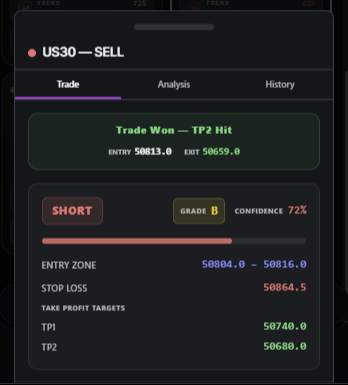
What it shows: the deep view of one trade or one instrument's current state. The sheet header is the instrument name + a direction dot (green/red/gray) + the direction label (BUY / SELL / STANDBY). Inside, the sheet has 3 tabs:
- Trade — entry zone, stop loss, take profits, AI confidence, the AI decision narrative.
- Analysis — the AI's reasoning and reference chart context.
- History — recent state changes and notes for this monitored trade.
This is the primary detail surface — most of your time inside Lite is either looking at tiles or looking at one of these sheets.
MacroDetailSheet
Opens when: you tap the Macro pill on any tile.
What it shows: a mobile-shaped view of the macro analysis for the group that instrument belongs to (US indexes / gold / bitcoin / forex), pulled from the same Macro Agent that powers the desktop Market Brief. You will see:
- Group bias (Strong Bull / Bull / Lean Bull / Neutral / Lean Bear / Bear / Strong Bear) with color coding.
- Confidence percentage.
- Narrative — a short prose summary.
- Key Factors — table of macro factors with impact / weight / freshness.
- Catalyst — upcoming event, expected impact, priced-in status, asymmetry.
- Last updated timestamp.
This is your phone-friendly way to ask "what is the macro saying about NAS100 right now?" without opening the full Market Brief page.
TrendDetailSheet
Opens when: you tap the Trend pill on any tile.
What it shows: the Trend Agent's evaluation for that specific instrument:
- Direction (LONG / SHORT / NEUTRAL).
- Strength (Strong / Moderate / Weak) and Regime (STRONG / TREND / TRANS / CHOPPY / RANGE).
- Confidence percentage and Primary Signal text.
- Key Levels — resistance, support, VWAP, invalidation level.
- Macro Context — how the trend evaluation weighted macro influence, plus a short note.
- Recent History — last few trend evaluations with timestamps so you can see whether the agent is flipping or holding.
StatsDetailSheet
Opens when: you tap any AI Trading Agent card on the Stats page.
What it shows: the same components used in the full app's Performance Modal, re-laid out for a phone. The sheet renders the model toggle, the TP blocks (TP1/TP2/TP3 win rate + Avg R + position sizing), the grade cards (A/B/C breakdown), the last-trades chart, the trades list, the summary grid, the AI Insights block, and the strategy prompt. The whole experience scrolls vertically inside the drawer.
Because the underlying components are the same ones used on desktop, the numbers you see here always match the full app — there is no separate Lite data pipeline.
10. Returning to the full app
Every Lite page shares the same bottom LiteTabBar, a floating glass pill with 7 tabs:
| Order | Icon | Label |
|---|---|---|
| 1 | Layout grid | Signals |
| 2 | Bar chart | Stats |
| 3 | History clock | History |
| 4 | Clock | Schedule |
| 5 | Gear | Settings |
| 6 | Info "i" | Key |
| 7 | Maximize | Full App |
The Full App tab is intentionally the rightmost slot — the spot your thumb defaults to when you reach the end of the bar. Tapping it sends you to the standard desktop-class SkyAnalyst interface, where you have the full chat surface, the Market Brief deep dive, the AI Trading Agents hub with Dashboard / Trades / Configure tabs, wizards, the right-rail Performance Panel, and the full Settings page.
Pro tip: bookmark both Lite Mode and the full app on your phone's home screen — they live as two icons that drop you straight into the surface you want. Lite for thumb-driven monitoring; Full App for any time you need to think, type, or build.
FAQ
Does Lite Mode have its own data? No. Lite reads from the exact same Supabase tables, hooks, and real-time subscriptions as the full app. If the Trend Agent updates NAS100 on the desktop right rail, the NAS100 tile on Lite updates within the same realtime tick.
Will I miss alerts if I am only using Lite? No. Alerts are delivered per the global Alerts settings (toast / sound / Telegram / webhook), independent of which surface you have open. The Alerts card on Lite Settings controls the same configuration as the Alerts card on desktop Settings.
Can I create or edit an automation from Lite? Not yet. Creation and editing live in the wizards on the full app's AI Trading Agents hub (the legacy "Automations" surface). Lite shows the result of your AI Trading Agents (the live signals, the performance, the history) and lets you toggle alerts and auto-trade on individual trades.
Why is there no Market Brief tab in Lite? The Market Brief is dense, table-heavy, and best read on a larger viewport. The MacroDetailSheet covers the most important macro view (per-group bias, key factors, catalyst) for the instrument you tapped, which is what most people open the Market Brief for on a phone.
Is there a tablet experience? Lite is sized for phone-class widths. On a tablet, it renders inside the same phone-frame and looks "phone-shaped on a big screen". A native tablet layout may come later.
Does Lite work offline? The app shell is cacheable for PWA installs, but live signal data needs an active connection. If you go offline mid-session, the tiles you already loaded stay on screen and the freshness dots will drift to amber and then gray.
Why is the Settings page on Lite a subset? Phone screens are a poor environment for password changes, OAuth re-linking, or sifting through chat history. We surface only the controls you are likely to flip on the move (alerts, auto-trade, webhook, subscription). Profile, Telegram, theme, language, and recent-chats management stay in the full Settings.
Can I share a deep link to a specific tile or trade? Not from Lite directly. Lite routes only navigate to pages, not to specific trades. To share a trade, open it in the full app's Trades tab and copy the link from there.
Tips for daily use
A few habits that compound:
- Pin Lite Mode to your home screen. On iOS Safari, tap the share sheet then "Add to Home Screen". On Android Chrome, the install prompt appears once you have visited a few times. The icon becomes a one-tap launcher.
- Check Schedule on day one. New users often expect signals all day. The Schedule page makes the operating window obvious in 5 seconds.
- Use the Key page when something looks wrong. If a tile is gray when you expected color, the Key page tells you whether it is freshness, regime, or a missing signal.
- Toggle auto-trade per instrument. The Trading Bridge runs the same way regardless of surface; flipping the TRADE chip on a tile in Lite is the same action as flipping it on the desktop trade card.
- Use the bell for one-off mutes. If you do not want noise on a specific monitored trade for the next hour, tap the bell on its tile. You can re-enable it anywhere (Lite or desktop) later.
Quick reference
- Mobile-first dashboard at Lite Mode. Available to any authenticated SkyAnalyst account.
- 6 pages: Signals (default) · Stats · History · Schedule · Settings · Key.
- 4 detail sheets: TileDetailSheet · MacroDetailSheet · TrendDetailSheet · StatsDetailSheet.
- One bottom tab bar with a Full App escape hatch on the right.
- No wizards, no chat, no Market Brief — for those, switch to Full App.
- Same data, same AI Trading Agents, same Trading Bridge — different surface.
Use Lite when you want to look. Use the full app when you want to do.