
AI Intelligence Agents
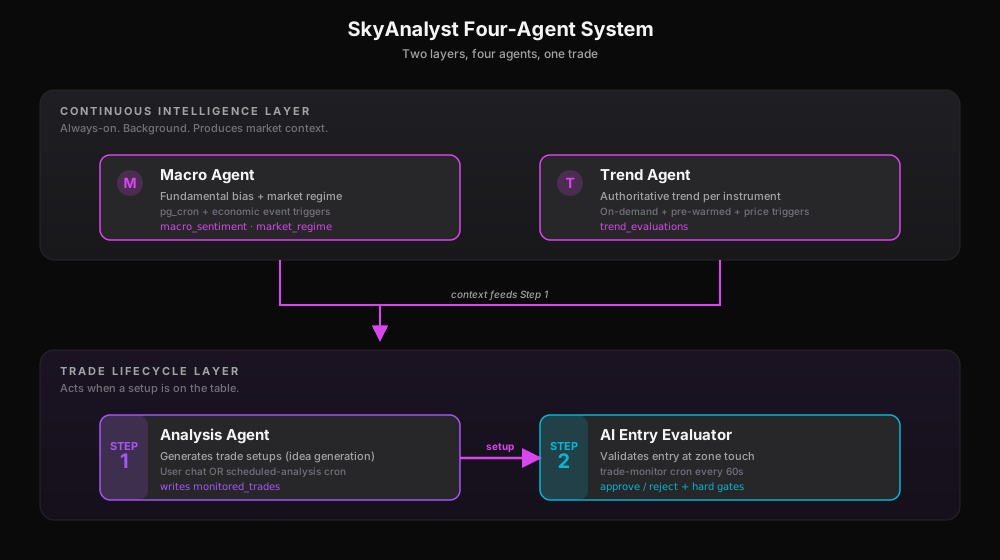
SkyAnalyst runs as a four-agent intelligence system. Two agents form the continuous intelligence layer that runs in the background and is always available; two more form the trade-lifecycle layer that takes the baton when you (or an AI Trader automation) want to act.
| Layer | Agent | Job in one line |
|---|---|---|
| Continuous intelligence | Macro Agent | Fundamental bias + market regime per instrument group, on a cron |
| Continuous intelligence | Trend Agent | Authoritative technical trend per instrument, on demand + pre-warmed |
| Trade lifecycle (Step 1) | Analysis Agent | Generates trade setups from chat or scheduled analysis runs |
| Trade lifecycle (Step 2) | AI Entry Evaluator | Validates each setup at the moment price enters the zone |
The continuous layer answers "what is the market doing right now?". The trade-lifecycle layer answers "is this specific setup safe to enter right now?". Every chat answer, every scheduled analysis, every trade alert is the product of all four working together.
| Agent | Role | Triggered by | Primary output | UI surface |
|---|---|---|---|---|
| Macro | Fundamental bias / regime | pg_cron baseline + high-impact economic events | macro_sentiment, market_regime | Market Brief page |
| Trend | Authoritative trend per instrument | Cron + chat queries + price triggers + automation pre-warm | trend_evaluations | Right-rail Trend tab in the AI Trading Agents hub |
| Analysis | Trade-idea generation (Step 1) | User chat OR run-scheduled-analysis cron | monitored_trades setup rows | Chat thread + Trades tab in the AI Trading Agents hub |
| Entry Evaluator | Validation gate (Step 2) | trade-monitor cron when price enters the zone | latest_ai_decision, status flip, alert payload | AI Entry badge + Performance Banners |
Macro Analysis Agent
What the Macro Agent Does
The Macro Agent produces institutional-grade fundamental bias analysis for 10 instruments across 4 groups:
- US Indexes: US30, US500, NAS100
- Gold: XAUUSD
- Bitcoin: BTCUSD
- Forex: EURUSD, GBPUSD, USDJPY, USDCAD, AUDUSD
For each instrument it generates: directional bias (strong bull to strong bear), confidence score, key driving factors, tradeability rating, upcoming catalysts, and risk events.
Think of it as having a team of macro strategists analyzing the market every hour.
How It Activates
The Macro Agent is event-reactive on top of a baseline cron. A lightweight scheduler runs every 2 minutes (Mon-Fri) and decides whether to fire the heavy analyzer. The analyzer is what actually does the research and writes the result.
Baseline schedule (EST): 3 AM (Pre-London), 5 AM, 8 AM (London), 9 AM (Pre-US), 10 AM (US Open), 11 AM, 1 PM, 3 PM, 5 PM (Post-Close), 9 PM. The 60-minute cooldown means consecutive slots never both fire.
Event triggers: After any High or Medium impact economic release (NFP, CPI, rate decisions, etc.), the scheduler fires within 2-15 minutes of the release. The currency of the event determines which groups re-run. USD events trigger all 4 groups; EUR/GBP/JPY events trigger Forex only; CNY events trigger Gold and Bitcoin.
No runs on weekends.
What Data It Analyzes
The Macro Agent pulls from 7 data sources in parallel:
- Market context — VIX, DXY, Oil, US 10Y Yield, NYAD breadth
- Real-time instrument prices (with staleness flags)
- Daily candle data — 95 days of OHLC for ATR ratios
- Economic calendar — today and tomorrow, Medium+High impact only
- Previous bias — to track upgrades, downgrades, and consistency
- Per-instrument daily charts with indicators
- NYAD (NYSE Advance/Decline) — for market breadth
It then runs a two-stage pipeline: Perplexity sonar-reasoning-pro does the live web research (~2,000-5,000 words per group, with citations), and a fast language model extracts that research into a strict JSON schema. If Perplexity fails for a group, the group fails entirely — there is no fallback to model-only analysis, which would risk hallucinating fundamental data.
Market Regime
The Macro Agent computes a composite regime score (0-100) from four weighted components — VIX (40%), ATR ratio (30%), news density (15%), NYAD breadth (15%) — and maps it to a regime label:
| Regime Score | Label | Position Size | Confidence Penalty |
|---|---|---|---|
| 0-19 | low_vol | 1.0x | 0 |
| 20-39 | normal | 1.0x | 0 |
| 40-59 | elevated | 0.85x | -5 |
| 60-79 | high_vol | 0.65x | -10 |
| 80-100 | extreme | 0.40x | -20 |
A Risk-Off mode also fires independently when VIX > 35 or VIX is more than 30% above its 5-day EMA. Risk-Off forces position size to 0.5x and applies a -15 confidence penalty on top of the regime penalty.
The regime directly affects how much weight the AI gives to technical vs fundamental factors per group. In calm markets, technicals lead (e.g., US Indexes at 85/15 in low_vol). In volatile markets, macro factors dominate (e.g., US Indexes at 30/70 in extreme). Rate decision days floor fundamental weight at 50% regardless of regime.
Reading the Market Brief Page
Open AI Market Intelligence from the sidebar to access the Market Brief page. The page is the user-facing surface of the Macro Agent.
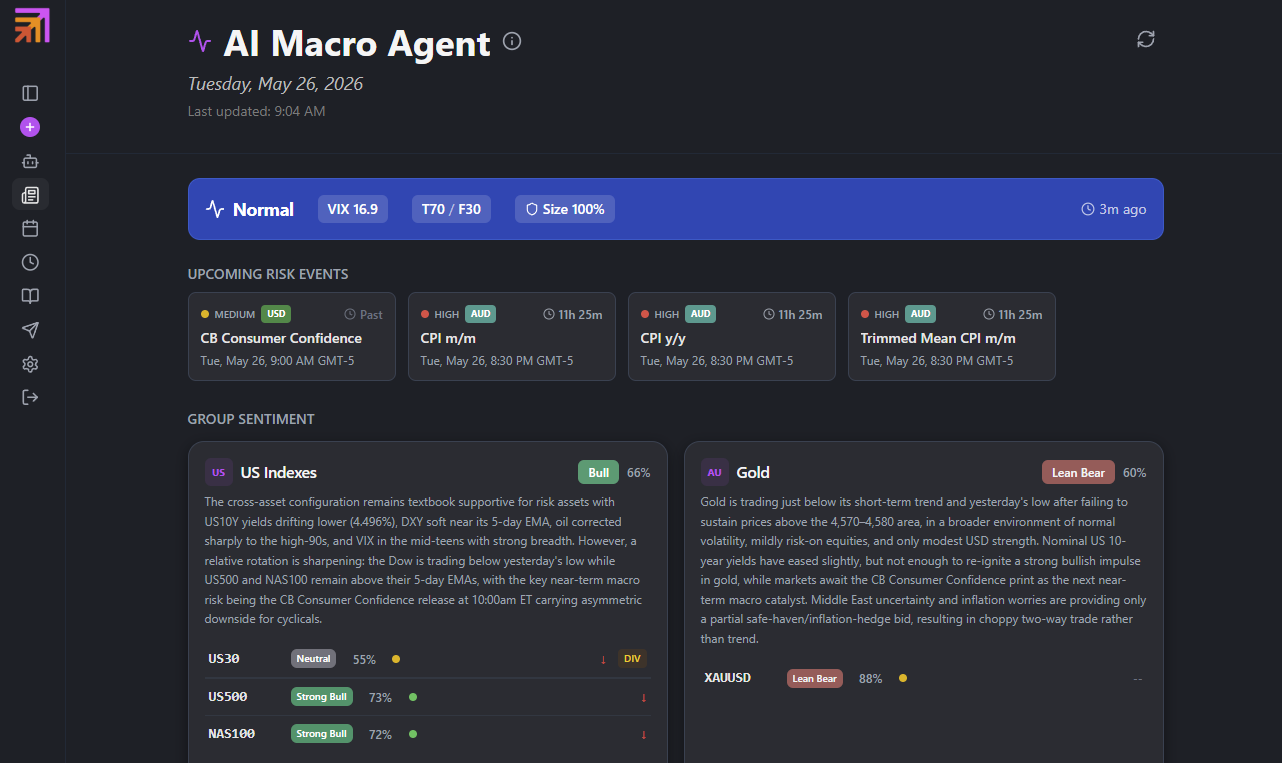
Pro Tip: Check the Market Brief before your first trade of the day. If the regime is "elevated" or higher, consider reducing your position sizes and widening your stops — the position size multiplier in the Regime Banner tells you exactly how much to scale down.
How to Read Every Number on the Market Brief Page
The Market Brief page packs a lot of data into a small surface area. Here's a glossary of every element you will see, in roughly the order they appear top to bottom.
Regime Banner (top strip)

- Regime label — One of
low_vol,normal,elevated,high_vol,extreme. Color-coded: emerald (low_vol), blue (normal), yellow (elevated), orange (high_vol), red (extreme). The label is the single fastest read of "should I be trading aggressively or defensively today?". - VIX value — The current VIX index reading to one decimal. A small warning triangle next to the value means VIX is stale (the data feed hasn't updated recently); treat the regime read with a grain of salt until it refreshes.
- T/F weight split (e.g., "T70 / F30") — How much the AI weights Technical vs Fundamental signals when it builds an analysis. The banner shows the US Indexes group as a representative split; other groups use slightly different weights at the same regime (see the table above).
- Position size multiplier (e.g., "Size 65%") — The regime's recommended size scaling, ranging 0.4 to 1.0. If you see 65%, the system is telling you "for the same risk, take 65% of the position you would normally take". When this drops to 0.6 or below, consider whether the setup is strong enough to justify trading at all.
- RISK OFF pulse — A red pulsing badge that appears only when Risk-Off mode is active. The tooltip explains the trigger (VIX spike or VIX-vs-EMA divergence). When RISK OFF is on, default behavior should be: lift profits early, tighten stops, skip counter-trend setups.
- Timestamp — When the regime was last computed.
Event Timeline (upcoming risk events)
A horizontal strip of upcoming Medium and High impact events for today and tomorrow. Each pill shows:
- Impact dot — red (High), amber (Medium).
- Currency — three-letter code (USD, EUR, GBP, etc.).
- Event title — abbreviated (e.g., "CPI m/m").
- Countdown — minutes/hours until release. When countdown is ≤ 1 hour the pill turns red as a heads-up to either close exposure or stand down until the print.
Correlation Alert
A banner that appears only when cross-group directional alignment crosses a threshold. The system computes effective independent bets — when every instrument moves the same direction, you do not have 10 trades, you have one trade in 10 disguises.
| Risk Level | When it fires | Position Size Multiplier |
|---|---|---|
| low | Default; banner hidden | 1.0x |
| moderate | US Indexes all same direction OR 4+ of 5 forex pairs same USD direction | 0.85x |
| high | 7+ of 10 instruments same direction | 0.7x |
| critical | Full risk-on/off (Indexes+BTC bull + Gold bear, or inverse) | 0.5x |
The banner shows effective independent bets (lower = more concentrated) and the applied position size multiplier. Warnings list the specific correlations the system flagged.
Group Sentiment Card (one per group)
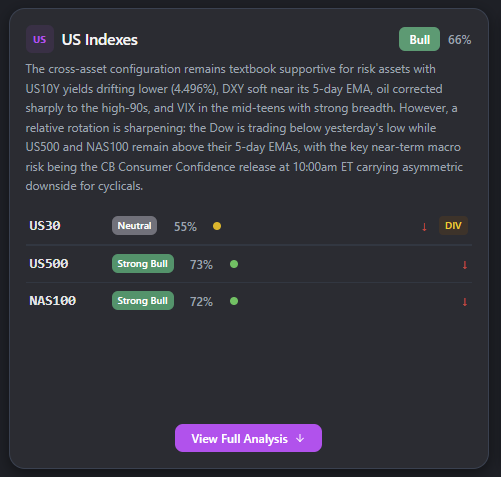
Each group (US Indexes, Gold, Bitcoin, Forex) gets a card. Click anywhere on the card to jump to its full Analysis Detail accordion below.
- Group bias — One of 7 levels:
strong_bull,bull,lean_bull,neutral,lean_bear,bear,strong_bear. Computed as the confidence-weighted average of the per-instrument biases. Bias scores map to: strong_bull +90, bull +65, lean_bull +35, neutral 0, lean_bear -35, bear -65, strong_bear -90. - Group confidence — 0-100 score, but in practice calibrated to the range 15-88. The floor of 15 prevents the AI from claiming "no confidence at all" (a misleading signal); the cap of 88 prevents overconfidence. Additional caps apply: if VIX > 32 the cap drops to 55; if research is unavailable a -10 penalty applies. The first time a group runs after a long break, a cold-start cap may further reduce the value.
- Macro narrative — 2-3 sentence summary of the dominant theme driving the bias.
- Per-instrument rows — One row per instrument in the group. Each row shows the instrument bias label (same 7-level scale), confidence, bias change arrow (↑ upgraded, ↓ downgraded, — unchanged vs the previous run), and a small tradeability dot.
Tradeability indicator (per instrument)
Each instrument has a tradeability score that summarizes whether the AI thinks the setup is worth chasing today. It comes in 4 levels:
- high — clean structure, fresh catalysts, no immediate headwinds. Default trading conditions.
- moderate — directional bias is there but there's a complicating factor. Trade smaller or wait for confirmation.
- low — bias exists but conditions argue against acting on it (chop, awaiting news, conflicting timeframes). Treat as informational.
- avoid — explicit "do not trade" verdict. Often paired with one or more flags (see below).
Hover the tradeability dot to see the flags that drove the verdict — common ones include "stale_data", "news_pending", "low_volume", "counter_macro", "regime_volatile".
Bias horizon + DIV badge
Each instrument bias has a horizon field that says how long the bias is expected to be valid:
- intraday — bias applies to today's session only.
- short_term — bias applies over the next 1-3 sessions.
A DIV (divergence) badge appears when the intraday horizon disagrees with the short_term horizon — useful when you want to know "is today's read fighting the multi-day read?". A DIV badge is a hint to either pick your timeframe carefully or stand down.
Bias change arrows
Next to each per-instrument bias you'll see an arrow showing how it shifted vs the previous run:
- ↑ — upgraded (e.g., neutral → lean_bull, or lean_bull → bull).
- ↓ — downgraded.
- — — unchanged.
Watch for two arrows of the same direction across the group cards — that's the system telling you the macro narrative is gaining momentum in one direction.
Analysis Detail accordion (under the cards)
Click a group card or scroll down to expand the full per-instrument analysis. Each instrument expands to show:
- Key Factors table —
Factor / State / Impact / Weight / Freshness:- Factor — the fundamental driver (e.g., "Fed Rate Path", "China Growth", "Oil Supply").
- State — what's currently true about it (e.g., "Hawkish 25bp pricing").
- Impact — direction this factor pushes the instrument (bullish/bearish/neutral).
- Weight — 0-100, how heavily this factor is weighted into the final bias.
- Freshness — when this factor was last validated (older = lower trust).
- Catalyst block — the single most important upcoming event for this instrument. Includes a priced_in flag (
Yes/Partially/No) telling you whether the market has already discounted the expected outcome. A "No" + asymmetric outcome distribution is the highest-EV catalyst type. - Conflicting Signals — bullet list of factors that argue against the AI's chosen bias. The Macro Agent is forced to surface its own counter-arguments rather than only the supporting case.
- Upcoming Risk Events — instrument-specific event list with impact, currency, and time.
Research Panel modal
At the bottom of the page is the Research Panel — a modal that opens the raw Perplexity research text for each group. This is the unedited 2,000-5,000-word output, with web citations, that the formatter model then condenses into the structured fields above. It's English-only (no Spanish translation pass), and useful when you want to see "what specific articles convinced the model that the bias is what it is?".
Refresh button (top-right)
The circular arrow button in the header re-reads the cached macro_sentiment data from the database. It does not force a new analyzer run. The macro analyzer is rate-limited (60-minute baseline cooldown, $20/day cost cap) — pressing refresh repeatedly will not produce new analysis, only re-render what's already stored. To get fresh data you have to either wait for the next baseline slot or wait for a High/Medium impact economic event.
How Macro Data Feeds Into Your Analysis
You do not need to check the Market Brief manually before every query. When you ask the AI for analysis or when your automations run:
- The latest macro analysis for your instrument's group is automatically injected into the AI's context.
- The AI sees the macro bias, confidence, key factors, catalysts, and risk events.
- A dynamic weighting rule tells the AI how much to emphasize macro vs technical factors based on current VIX and regime.
- If macro data is stale or unavailable, the AI proceeds with technical analysis only and notes the limitation in the response.
Trend Authority Agent
What the Trend Agent Does
The Trend Agent evaluates directional trend for each instrument:
- Direction: BULLISH, BEARISH, or NEUTRAL
- Confidence score: 0-100%
- Strength rating: STRONG, MODERATE, or WEAK
- Market regime classification: STRONG_TREND, TRENDING, TRANSITIONING, CHOPPY, or RANGE_BOUND
- Key levels: support, resistance, invalidation
- Trade recommendation: FULL_SIZE, NORMAL, REDUCE_SIZE, or AVOID
- Primary signal: A summary of the single most important factor driving the call
- Macro influence: a slim BULLISH/BEARISH/NEUTRAL signal derived from the Macro Agent's group bias — this is the channel through which Macro reaches the Entry Evaluator (see "Design rationale" below)
How It Activates
Unlike the scheduled Macro Agent, the Trend Agent is demand-driven:
- Your queries: When you ask for analysis, the system checks if a fresh trend evaluation exists. If not, it triggers one automatically.
- Automation pre-warm: 10 minutes before a scheduled automation runs, the Trend Agent evaluates the relevant instruments so fresh data is ready.
- Price triggers: When price crosses key invalidation levels, the Trend Agent re-evaluates.
- After economic events: Post-news re-evaluation to update direction.
- Cooldown: Minimum 2 minutes between evaluations per instrument, with 20-minute cooldowns for most trigger types.
Where you see Trend Agent output
The right-rail panel on the AI Trading Agents hub has a Trend Agent tab that lists current trend reads per instrument. Each row shows the direction indicator, freshness badge, direction label, confidence, strength, regime badge, and a one-line primary signal.
Key Insight: Rows with a STANDBY badge indicate the evaluation is over 60 minutes old. The data is still visible but may not reflect current conditions. The agent will refresh automatically on your next query or automation run.
The Trend Card — the canonical inspection surface
Click any row to open the full Trend Card — direction, confidence, regime, key levels (support / resistance / VWAP), invalidation level, multi-timeframe alignment, recent decision history, and the AI narrative behind the call. The Trend Card is the canonical UI for inspecting a single trend evaluation.
Standby Mode and Freshness
- When all evaluations are older than 60 minutes, a banner appears: "Trend Agent is in standby — activates on next query or scheduled automation".
- This is normal behavior, not an error — the agent conserves resources when not needed.
- Evaluations refresh automatically when triggered by your activity.
How Trend Data Feeds Into Your Analysis
Trend Agent data is automatically available in your analysis: the AI receives the current direction, confidence, strength, key levels, and invalidation for your selected instrument. This acts as a "trend authority" — the AI factors the trend direction into its setup recommendations. When the Trend Agent shows HIGH confidence in a direction, setups aligned with that direction receive a boost; counter-trend setups are flagged with extra caution.
Analysis Agent (Step 1 — Trade Idea Generation)
What the Analysis Agent Does
The Analysis Agent is the model that turns market data and your prompt into a structured trade setup: an instrument, a direction, an entry zone, stop loss, take profits, a confidence grade, and the reasoning behind all of it.
It is the same edge function — ai-chat — that powers both your interactive chat and your scheduled automation runs. The only difference is who calls it and with what prompt.
Inputs
When the Analysis Agent runs, the ai-chat function assembles a payload containing:
- Full Macro block — the latest
macro_sentimentrow for the instrument's group, including bias, confidence, key factors, catalyst, conflicting signals, and the current regime label. - Full Trend block — the latest
trend_evaluationsrow for the instrument, including direction, confidence, strength, regime, key levels, invalidation, and macro_influence. - Multi-timeframe candles — 5 x 60-minute candles + 5 x 15-minute candles + 10 x 5-minute candles + the current daily candle, with full indicator payloads (EMAs, RSI, ATR, volume, VWAP).
- Economic calendar — today and tomorrow's Medium+High impact events.
- Session context — pre_london / london / pre_us / us_session / post_us, plus today's date.
- Your prompt or the automation strategy prompt — the actual question being asked.
Output
The Analysis Agent produces a structured chat message. When the user (or the automation) opts to monitor any setup in that message, the trade-setup-extractor function parses the structured fields out of the AI response and writes one row per setup into the monitored_trades table.
A monitored trade row contains: instrument, direction, entry zone (low/high), stop loss, TP1/TP2/TP3, confidence grade (numeric + letter), trade style (intraday vs swing), expiration time, and the linkage back to the source chat and source automation.
Trigger Paths
There are two distinct ways the Analysis Agent fires:
- User chat — you type a question in the analyst chat, the
ai-chatfunction runs with your prompt + all the inputs above, and the response renders in the chat thread. You decide which (if any) setups to monitor. - Scheduled analysis — the
run-scheduled-analysiscron job fires on the schedule defined in your AI Trader (Generate Trade Ideas) or Automated Analysis automation. The automation's saved strategy prompt is used in place of a user prompt. If the automation type isgenerate_trade_ideas, every setup the AI proposes that meets the configured trade quality filter is auto-monitored.
One Run, One Commitment
The Analysis Agent's output is the first half of the trade decision. Once a setup is monitored, the Step 2 AI Entry Evaluator and the price-monitor loop take over — the Analysis Agent does not get a second pass on the same setup. This is intentional: the Step 1 thesis is locked in when the setup is written, and Step 2 is purely a validation gate at the entry zone. If the thesis is wrong, the trade should fail at Step 2, not at a re-vote at Step 1.
AI Entry Evaluator (Step 2 — Entry Validation Gate)
What the AI Entry Evaluator Does
The AI Entry Evaluator is the second AI in the trade lifecycle. Its single job is: when price enters the monitored entry zone, decide whether the Step 1 thesis is still valid right now. It either approves the entry (status flips to pending_confirmation, an alert fires, and — if auto-trading is enabled — the Trading Bridge is called), or it denies the entry (the trade stays waiting/in_zone and may be re-evaluated on the next zone touch).
It is implemented in the entry-evaluator edge function and is called by the trade-monitor cron (every 60 seconds) when a monitored trade transitions from waiting into the zone.
Inputs (smaller by design)
The Entry Evaluator runs on a smaller input set than the Analysis Agent:
- 4 x 5-minute candles (3 completed + 1 forming).
- 2 x 15-minute candles (1 completed + 1 forming).
- Trend slim block — just direction, confidence, strength, primary signal, and
macro_influencefield. - No Macro block directly.
- The original Step 1 trade setup (zone, SL, TPs, original reasoning, grade).
- Price history of how price has behaved since first zone entry, including a
tp1_touchedflag.
Design rationale — why no Macro at Step 2: Macro context is already baked into the Trend Agent's
macro_influencefield by the time Step 2 runs. Feeding the full Macro block again would double-count fundamental factors that were already weighed at Step 1. The Step 2 question is narrower: "does the immediate price action invalidate the original thesis?" — and that question is best answered with fresh micro-timeframe data, not re-litigated macro.
Outputs
latest_ai_decision— written onto themonitored_tradesrow, contains the decision (should_enter true/false), confidence, reasoning (EN + ES), and timestamp.entry_recommendation_history— an append-only table; one row per evaluation, including denials. This is the audit trail behind the AI Entry badge.- Status flip — on approval, the trade flips to
pending_confirmation(and the alert dispatcher fires); on denial, the trade returns toin_zoneand is re-evaluated on the next zone touch (subject to cooldowns).
Hard Gates (override AI approval)
Even when the AI approves an entry, four hard gates can block it. These are mechanical checks that run before and after the AI evaluation and override the AI verdict when they trip:
- Open-position guard — If the user already has an open trade on the same instrument, the new entry is blocked. Runs pre-AI (saves credits — the model is never called for a setup that can't be entered anyway). Implemented across both initial evaluation and the
confirmEntrypath so a stalepending_confirmationcannot promote into a position when one already exists. - News-blocking window — If a Medium+High impact economic event for the instrument's currency is within the configured pre/post-event window, the entry is blocked. Runs pre-AI. The trade is paused rather than denied — once the window passes it can re-evaluate.
- Recent-loss gate — If the same instrument has registered a stop-loss or losing close within the past 6 hours (scoped to the automation), the entry is blocked. Runs pre-AI by default (configurable), so users with this guard on don't burn credits on instruments that just stopped them out. Default behavior is conservative — if you want the model to still produce its analysis even when this gate would block, you can move this check to post-AI in settings.
- Same-direction loss gate — If the current session has already seen a losing trade on the same instrument in the same direction with zero TP hits, a same-direction re-entry is blocked. Runs post-AI. The model's verdict and reasoning are preserved on the record so you can see "AI approved, but the revenge-trade guard denied".
The gate decision is recorded on entry_recommendation_history.hard_gate_blocked with the specific gate_reason so you can audit why an entry didn't fire even when the chart looked clean.
Grade-A Fast Track
When the Step 1 setup is graded ≥ 8 (eight or above) (Grade A or A+) AND the automation's auto_approve_grade_a flag is on, the Entry Evaluator switches to a fast-track prompt (entry_evaluation_grade_a instead of the standard prompt). In this mode the AI's role narrows from "evaluate everything" to "act as a safety veto" — the assumption is that the Step 1 thesis is strong enough that conditions verification is unnecessary, and Step 2 only needs to confirm that nothing has catastrophically changed at the zone.
The hard gates still apply in fast-track mode. Fast Track only changes the AI's evaluation depth — it does not bypass the open-position, news-blocking, recent-loss, or same-direction loss checks. See the AI Trading Agents chapter for the wizard step where this flag is configured.
How the Agents Work Together
End-to-End Sequence
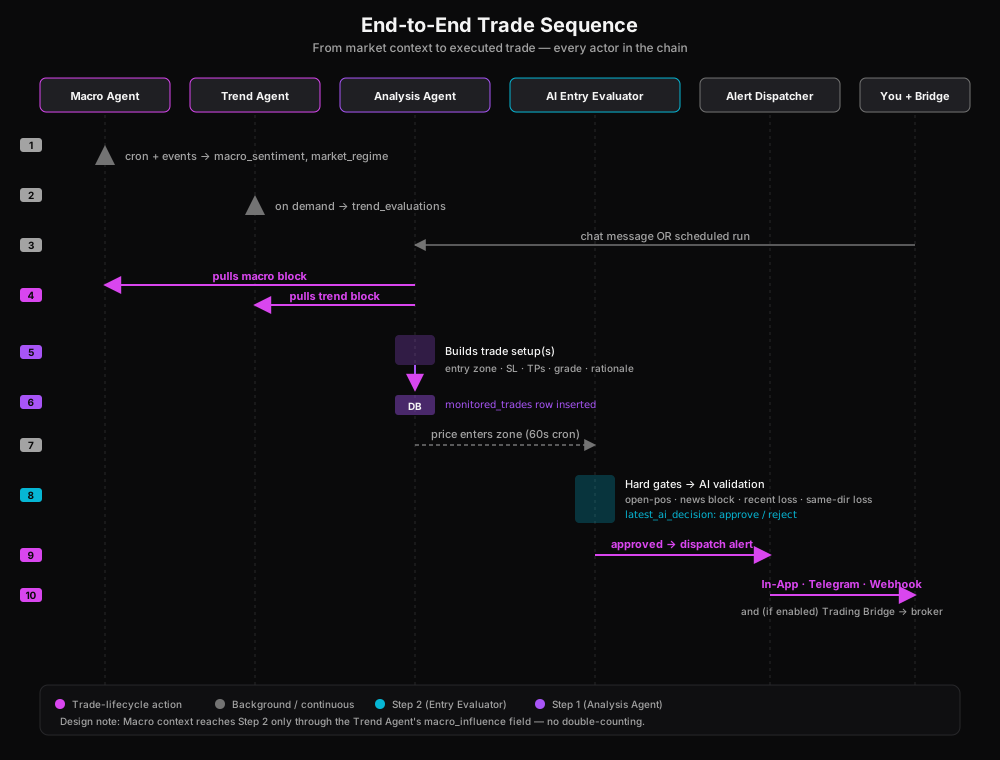
The full path from raw data to a fired trade alert looks like this:
-
Continuous layer running in the background
macro-scheduler(pg_cron, every 2 minutes Mon-Fri) decides whether to firemacro-analyzer. The analyzer writesmacro_sentimentper group.trend-agent-evaluatorwritestrend_evaluationson demand, with a pre-warm 10 minutes before every scheduled automation.
-
Step 1 — Setup generation
- User asks for analysis in chat OR
run-scheduled-analysiscron fires for an AI Trader. ai-chatassembles the Macro + Trend + multi-timeframe candles + economic calendar + session context + the prompt.- AI produces a chat response with one or more structured trade setups.
trade-setup-extractorparses setups out of the response and writesmonitored_tradesrows.
- User asks for analysis in chat OR
-
Step 2 — Entry validation
trade-monitor(60-second cron) readsmonitored_tradesfor setups inwaiting/in_zone/pending_confirmationstatus that haven't expired.- When price enters the zone, the trade transitions to
in_zoneandentry-evaluatoris called. - Pre-AI hard gates run first (open-position, news, recent-loss).
- If gates pass, the AI Entry Evaluator runs with its slim input set.
- Post-AI gates run (same-direction loss).
- Decision is written to
latest_ai_decisionandentry_recommendation_history.
-
Step 3 — Alert + optional execution
- On approval, status flips to
pending_confirmationandalert-dispatchersends the alert via the user's configured channels (in-app, Telegram, webhook). - If
auto_execute = trueon the trade, the dispatcher also calls the Trading Bridge with the payload.
- On approval, status flips to
Worked Example — NAS100 Smart Scan Setup
A concrete trace of all four agents producing one trade:
- 08:00 EST — Macro Agent baseline run. London session opens.
macro-schedulerfiresmacro-analyzerfor all 4 groups. US Indexes comes backlean_bullat 62% confidence, regimenormal, T75/F25 weighting. Macro narrative: "Soft DXY + supportive 10Y yields + breadth improving overnight." - 09:50 EST — Trend Agent pre-warm. Your Smart Scan AI Trader for NAS100 is scheduled to run at 10:00. 10 minutes before, the Trend Agent evaluates NAS100 and writes a fresh
trend_evaluationsrow: direction BULLISH, confidence 71%, regime TRENDING, primary signal "Above 60m EMA20 + RSI rising off 40". - 10:00 EST — Analysis Agent runs (Step 1).
run-scheduled-analysisfiresai-chatwith the Smart Scan strategy prompt + the full Macro block + the full Trend block + multi-timeframe candles + economic calendar. The AI proposes a long setup: zone 17,840-17,860, SL 17,795, TP1/2/3 ladder, Grade A (8.2 numeric score).trade-setup-extractorwrites themonitored_tradesrow. - 10:18 EST — Price enters zone.
trade-monitordetects NAS100 trading at 17,852. Status flips toin_zone. - 10:18 EST — Pre-AI gates run. No open NAS100 position. No news event in window. No recent NAS100 loss in last 6h. All pass.
- 10:18 EST — Entry Evaluator runs (Step 2). Because the setup is Grade A (8.2, i.e. ≥ 8) and the automation has
auto_approve_grade_aon, the Grade-A Fast Track prompt is used. The AI gets the slim input set (4 x 5m + 2 x 15m candles, Trend slim block). It approves: confidence 76%, reasoning "Zone respected on first touch, 5m structure intact, no catalyst risk inside the window." - 10:18 EST — Post-AI gates run. No prior same-direction NAS100 loss this session. Pass.
- 10:18 EST — Status flip + alert. Trade flips to
pending_confirmation.latest_ai_decisionis written.alert-dispatcherfires the in-app alert and the Telegram alert. - 10:18 EST — Optional execution. The automation has auto-trading enabled and the Trading Bridge is paired. The dispatcher posts the trade payload to the bridge with routing key
NAS100-Pepperstone. The cTrader bot opens the position. Trade transitions totriggered.
The same trade trail is visible across surfaces: the trade card on the Trades tab in the AI Trading Agents hub shows the AI Entry badge; the Trend tab on the right rail shows the trend snapshot used; the Market Brief page shows the macro snapshot used; the chat thread for the automation shows the original Step 1 reasoning; the Performance Modal Activity tab shows the run that produced it.
Design Rationale — Macro Reaches Step 2 Only Via Trend
A reader spotting that the Entry Evaluator deliberately omits the Macro block is right to ask: doesn't that lose information?
The answer is no, by design. The Trend Agent's macro_influence field is the single channel through which Macro reaches Step 2. The Trend Agent has already consumed the macro picture when it produced its evaluation, and it has summarized that into a slim BULLISH / BEARISH / NEUTRAL bias on the trend record. Feeding the full Macro block to the Entry Evaluator on top of that would re-weight fundamental factors that were already weighed at Step 1, causing the same macro view to influence the same trade decision twice (once via the trend bias the model was already given, once directly). The Step 2 question is immediate price action validation, not a re-vote on the thesis — so it gets fresh micro-timeframe candles plus a thin macro signal, not the whole brief again.
Cross-Links
- Macro Agent UI -> Market Brief page
- Trend Agent UI -> right-rail Trend tab in the AI Trading Agents hub
- Analysis Agent surfaces -> Trades tab in the AI Trading Agents hub + analyst chat
- AI Entry Evaluator outputs → AI Entry badge on the trade card; AI Entry Confirmed banner at the top of the Trades grid
- Grade-A Fast Track flag → configured in the AI Trading Agents chapter, Step 6 of the Generate Trade Ideas wizard