
How to Use SkyAnalyst
SkyAnalyst is a trading desk in your pocket. AI Trading Agents run your strategies in real time. An AI analyst lives on the other side of a chat box. Macro and Trend agents pulse market intelligence into your sidebar. Approved signals fire at your broker through the Trading Bridge. And an integrated education layer teaches the why behind every decision.
This chapter is your map — a guided tour of every surface you'll encounter, plus the deep dive on the one surface that needs the most practice: the AI Chat Assistant. Each surface has its own dedicated chapter; this chapter shows you where it sits in the overall flow.
What you'll learn here
By the end of this chapter you'll know:
- The six surfaces of SkyAnalyst and what each one is for.
- How to operate the AI Chat Assistant — every control, every input, every output.
- How to ask questions that get useful answers, not noise.
- A daily routine that mirrors how professional traders use the desk.
- A concrete first-hour walkthrough you can run the moment you sign up.
What this chapter is not: a deep dive on AI Trading Agents, the four-agent architecture, the Trading Bridge install, settings, or the trading curriculum. Those each have their own chapter — links are inline where they matter.
The Six Surfaces — A Guided Tour
SkyAnalyst is not a single screen. It's a desk built from six surfaces that share the same live data, the same agents, and the same broker connection. The center of gravity is the AI Trading Agents Hub — everything else either feeds it, supports it, or extends it. Knowing which surface to open for which job is the single biggest jump in productivity you can make.
Surface 1 — AI Trading Agents Hub (the heart of the app)
The AI Trading Agents Hub (sidebar → Trading Agents) is where your fleet of AI Traders lives. They run on the schedule you set, monitor live trades tick-by-tick, validate every entry the moment price reaches the zone, and surface signals via the AI Entry Evaluator — with or without your finger on the trigger.
Three tabs:
- Dashboard — one card per agent. State icon (Analyzing / Monitoring / Trading / Waiting / Sleeping), live trade pills, today's P/L. The Dashboard is where you watch the fleet breathe in real time during the session.
- Trades — every monitored trade in your fleet, with status badges (Alert ON → In Zone → AI Approved → Entry Signal → TP1 Hit → …), a filter bar, and the banner system that surfaces "the next 30 seconds of attention you should give the market". This is where you interact with individual trades.
- Configure — the dense view of every agent's settings, plus the two wizards (Create AI Trader, Automate Analysis).
Every paid tier ships with Master AI Trading Agents pre-installed for the major instruments (XAUUSD, USDJPY, EURUSD, US500, NAS100, US30). Lite gets 2, Pro 4, Elite 5, Max all 6. You can also build your own from a wizard in a few clicks.
Use it when: every trading day. This is the surface you keep open during the New York session and the one that produces the trades you'll act on.
➡️ Full operating manual: AI Trading Agents chapter of this guide.
Surface 2 — AI Chat Assistant (solo analyst + Agents companion)
The AI Chat (the central chat box on the main page) has two distinct modes, and understanding both is what separates rookie use from professional use.
Mode A — Solo analyst
Used on its own, the chat is your on-demand analyst. Ask any question in plain language and get structured, step-by-step CMT-style reasoning. Upload chart images. Select any sentence and click "Explain" for a beginner-friendly breakdown.
What you can do solo:
- Ask for a market bias, setup ideas, risk evaluation, or concept explanation on any supported instrument — even ones you don't have an AI Trading Agent for.
- Generate a one-off trade idea on the spot, then start AI monitoring on it directly from the chat response — the AI Entry Evaluator will watch your idea exactly as if it had come from a scheduled agent, no Trading Agent required.
- Walk through scenarios ("if XAUUSD breaks 2,650, what's the next target?") or interrogate live price action ("why is US30 moving like this?").
Mode B — Companion to your AI Trading Agents
Used in conjunction with the Trading Agents Hub, the chat becomes the deep-dive layer over your fleet. From the Dashboard or any Trade Card, you can pull a trade into the chat and ask the analyst to interrogate the agent's reasoning:
- "Why did the AI approve this entry?"
- "Could the SL be tighter here without breaking the structure?"
- "Compare this setup to last week's XAUUSD short — what's different?"
- "Walk me through the macro context that supports this trade."
This is how you build conviction in the agent's decisions before you trust them with capital — and how you spot when an agent is starting to drift from its usual logic.
Use it when: you have a question that needs reasoning now; when you want to start monitoring a one-off idea without building a full agent; or when you want to interrogate a setup an AI Trading Agent has produced.
The full deep dive on the chat surface — controls, inputs, outputs — is in Section 3 of this chapter.
Surface 3 — Performance & Track Record
Every Master AI Trading Agent ships with a live performance track record on your screen — not a screenshot, not a marketing claim, the actual outcomes of every monitored trade it has produced. Open any agent card on the Dashboard, click the trophy icon, and the Performance Modal opens with:
- Today / This Week / This Month / This Year / All-time win rate, broken down by TP1, TP2, and TP3.
- Average R-multiple across closed trades.
- Activity tab: every closed trade, every AI decision, every model used.
- Model Comparison tab (when the agent has run on more than one model).
- AI Insights tab: a written trend label ("Improving", "Stable", "Declining") once you have enough closed trades.
This is how you build trust before you flip Trading Bridge auto-execution to ON. You should never automate an agent whose performance modal you have not read.
Use it when: deciding whether to enable auto-trade for an agent, when an agent surprises you (good or bad), or weekly as part of your trade review.
Surface 4 — Trading Bridge (Automated Execution)
The Trading Bridge is a Windows desktop app that connects approved AI entries to your cTrader or MetaTrader 5 account. Once paired, every signal an AI Trading Agent approves (and where you've enabled auto-execute on that agent) is forwarded to a bot on your chart, which places the order at your broker — inside the risk rules and position size you defined.
- One-way: alert → broker.
- Per-trade override on every signal — kill switch on every entry.
- Position sizing is your call, set in the bot.
Use it when: you want hands-off execution and have built enough trust in an agent (via Surface 3) to let it fire orders without your finger on the trigger.
➡️ Full setup and routing guide: Trading Bridge — Setting Up Automated Trading chapter of this guide.
Surface 5 — Welcome Screen & AI Market Intelligence
When you log in, you land on the Welcome Screen. The hero panel shows a short paragraph of AI Market Intelligence — a written, real-time read of the macro environment, sentiment, currency flows, indices, and what is actually moving today. This is the same output the Macro Agent produces for every AI Trading Agent run, surfaced here so you can read the room before you do anything else.
- The summary refreshes dynamically (every 15, 30, or 60 minutes depending on volatility).
- Click "Read Full AI Market Intelligence" for the complete macro narrative.
- The same panel lives in the sidebar (under AI Market Intelligence) so you can re-check the macro tone from anywhere in the app.
Use it when: starting your session, after a major news release, or any time price action stops making sense and you suspect a regime change.
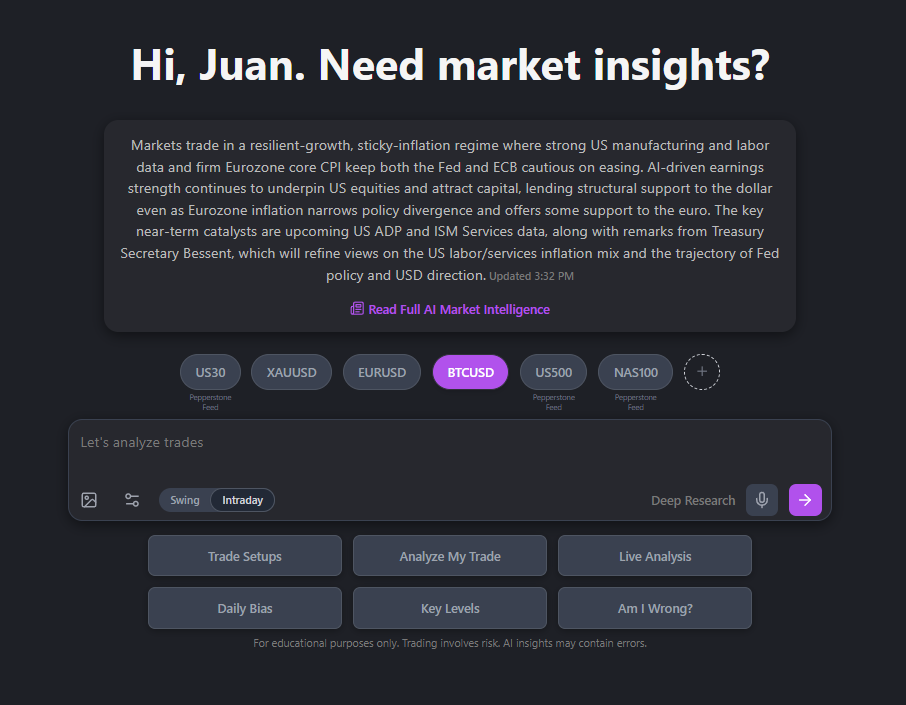
Welcome Screen Example
Surface 6 — Trading Foundations (the education layer)
SkyAnalyst is educational by default — every analysis explains why, not just what. But the structured curriculum is in the Trading Foundations chapter of this guide, bundling five interlocking modules: Fundamentals, Psychology, Technical Analysis, Dynamic Risk, and Professional Edge.
You don't have to read it in one sitting. The smart pattern: when the AI mentions a concept you don't fully understand (a hammer candle, a fair value gap, a "low ATR regime"), pop into Trading Foundations and read the relevant module. The chat will not punish you for asking the same concept question twice — it's designed to teach.
Use it when: you're new to trading, when you want to deepen your reasoning, or when a chat response uses terminology you want to internalize.
➡️ Full curriculum: Trading Foundations chapter of this guide.
The AI Chat in Depth
The chat is the surface that takes the most practice to use well. Everything below is about the chat specifically — the controls, the inputs, the outputs, and the keyboard-level mechanics.
1. Trading Pair Selector
Just below the market summary, you'll find the Trading Pair Selector.
- Click on any instrument (for example, US30, XAUUSD, BTCUSD) to set it as your active symbol.
- The model will only analyze the selected instrument. Comparative or cross-asset analysis is not supported at this time.
- To remove a pair, hover over it and select delete.
- To add a new one, click the "+" button and choose from the available list.
- Be mindful of broker feeds: instruments like US30 or US500 may have small price differences depending on your broker (e.g., Pepperstone, HFM, Swissquote). Always match your chart feed to the one shown in the app.
SkyAnalyst automatically aligns its internal data feed with the selected pair to ensure accurate analysis.

Trading Pair Selector Interface
2. Main Chat Input
The chat box is the core of the chat surface. This is where you type your prompts and questions in natural language.
You can ask for:
- Market overviews
- Trade setup ideas
- Risk evaluations
- Explanations of technical concepts
The model responds with structured, step-by-step reasoning, explaining bias, setups, and context in a CMT-style format.
Tip: Each chat session is designed to focus on today's market. Start a new chat daily for the most relevant and accurate results.

Chat Input with Analysis Options
3. Image Input
Next to the chat bar, you'll find an image upload button. This allows you to upload chart images for reference.
The AI primarily relies on its internal data and structured analysis feeds, not image interpretation. Images can be used for context, but they are not required and may occasionally produce limited insights. For best accuracy, use written prompts and data-based questions.
4. Shortcut Buttons
Below the chat input, you'll see several shortcut buttons such as:
- Trade Setups
- Analyze My Trade
- Live Analysis
- Daily Bias
- Risk Assessment
Each button triggers a predefined prompt designed to help you start quickly.
- You can customize these buttons by changing their name, color, or underlying prompt text.
- This allows you to create your own "quick actions" for the tasks you use most frequently.
- These shortcuts are especially useful during live sessions when fast responses are needed.
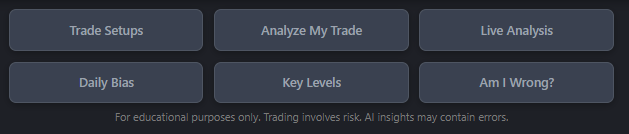
Customizable Shortcut Buttons
5. Analysis Time
SkyAnalyst performs a multi-layered computation for every full analysis request.
- Average analysis time is 1 to 2 minutes, depending on model load and data volume.
- During this process, several specialized agents review technical data, price structure, volatility, and macro context.
- The slightly longer processing time ensures high-quality, reasoned analysis rather than surface-level summaries.
6. Highlight & Explain
Inside any chat response, you can select text and click "Explain".
- This triggers the model's Education Mode, where it breaks down the selected concept in clear, beginner-friendly language.
- It's an excellent way to deepen your understanding of technical logic without running a full analysis.
- These educational explanations generally use fewer computational resources than a full analysis.
SkyAnalyst may determine that some queries require deeper evaluation and automatically switch to a full analysis when necessary. This ensures that every answer remains accurate and context-aware.
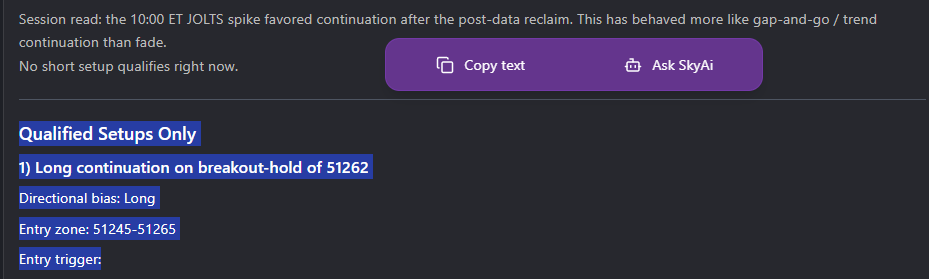
Explain Tool with Ask SkyAI Option
7. Conversation Memory — When to Start Fresh
The chat remembers context within a session. For day trading, that context must remain current.
- Begin a new chat each day instead of reusing older conversations.
- This ensures the model focuses exclusively on today's structure and volatility conditions.
- Old chats may contain outdated references that affect analysis relevance.
- Conversations older than 7 days are automatically removed.
Creating a new chat daily also keeps the reasoning chain clean and the context window focused.
8. How the Chat and AI Trading Agents Work Together
A common rookie question: "if the chat can give me trade setups, why do I need AI Trading Agents?" The honest answer: they're not alternatives, they're complements. Professional users run both at once.
The split looks like this:
| Surface | What it does best |
|---|---|
| AI Trading Agents | The always-on watch. Recurring scheduled scans, live monitoring on every setup, entry validation by the AI Entry Evaluator, and optional auto-execution via the Trading Bridge. This is your primary signal-generation surface. |
| AI Chat — solo | One-off questions on any instrument. Bias checks, scenario planning, concept explanations, and one-off trade ideas you can put under AI monitoring with a single click from the chat response. |
| AI Chat — companion | The interrogation layer over your Trading Agents. From the Dashboard or any Trade Card, pull a trade into the chat and ask why the AI approved it, whether the SL could be tighter, how it compares to past trades, or what macro context supports it. |
The practical pattern: the Agents Hub runs in the background and produces the trades. The chat is how you interrogate, scenario-plan, and learn — both for trades the agents produced and for one-off ideas of your own. Every Trade Card has a "View in Chat" affordance that opens this dialogue.
How to Ask Questions
SkyAnalyst was designed to respond to natural language — you don't need code, precise syntax, or special commands. However, understanding the right way to ask questions will help you get faster, clearer, and more actionable answers.
This section shows you how to use prompts effectively, so your analysis sessions are both efficient and educational.
General Principles
-
Be Clear State what you want directly. Instead of "What's going on?", try: "What's the overall bias on US30 right now?"
-
Be Specific The more precise your question, the more useful the response. Avoid vague terms like "analyze everything" — ask for what matters.
-
Use Full Instrument Names When Possible Although SkyAnalyst uses the selected trading pair as context, mentioning the pair explicitly in your prompt removes ambiguity.
-
Ask One Thing at a Time If you want analysis on direction, setups, and risk, ask in stages. This makes each answer more focused and easier to apply.
Question Types
1. Market Overview
Use this to understand the big picture for your session.
Examples:
- "What's the overall bias on XAUUSD today?"
- "How is US30 looking for the London session?"
- "Is there a clear directional tendency on BTCUSD right now?"
What You Get: A structured summary of the market's directional tendency, key levels, and general context based on technical structure and indicator signals.
2. Trade Setup Requests
Use this when you want specific entry-level ideas.
Examples:
- "What are the best setups on EURUSD right now?"
- "Show me potential long entries on US500"
- "Where should I look for a sell setup on GBPUSD?"
What You Get: Logical price zones, support/resistance levels, and conditions to watch for structured entries. These are not signals, but areas to monitor based on probability and structure.
3. Risk Evaluation
Use this when deciding if a trade makes sense from a risk perspective.
Examples:
- "I want to buy US30 at 43,200. What's the risk here?"
- "Is shorting XAUUSD at 2,650 a high-probability setup?"
- "What's the invalidation point if I go long on BTCUSD from here?"
What You Get: A risk-based evaluation including stop-loss zones, invalidation levels, and context that helps you decide if the trade has a favorable structure.
4. Concept Explanations
Use this when you want to learn a specific concept or term.
Examples:
- "What is a demand zone?"
- "Explain how RSI divergence works"
- "Why do traders wait for higher timeframe confirmation?"
What You Get: A clear, beginner-friendly explanation of the concept, often with practical context so you understand how it applies in real trading.
5. Live Updates
Use this when market conditions shift or volatility spikes.
Examples:
- "What just happened on US30?"
- "Why is XAUUSD moving so fast right now?"
- "Update me on EURUSD after this breakout"
What You Get: A real-time interpretation of the current price action, helping you understand the logic behind the move and what it might mean for your bias or open positions.
Advanced Prompting Techniques
Multi-Step Prompts
Instead of asking for everything at once, use a sequence:
- First: "What's the bias on US30?"
- Then: "Where are the best long setups?"
- Finally: "What's the stop-loss zone for a long from 43,150?"
This keeps each answer focused and lets you build context step by step.
Conditional Prompts
Ask scenario-based questions to prepare for different outcomes:
Examples:
- "If US30 breaks above 43,500, what's the next target?"
- "What happens if XAUUSD fails to hold 2,640 support?"
This trains you to think in probabilities and prepares contingency plans.
Comparative Prompts
Use when you want to weigh different scenarios:
Examples:
- "Is it safer to long US30 here or wait for a pullback?"
- "Which has better structure right now — EURUSD or GBPUSD?"
What to Avoid
❌ Vague Prompts Don't: "Tell me about the market" Do: "What's the bias on XAUUSD this session?"
❌ Over-Requesting Don't: "Analyze everything on US30, XAUUSD, BTCUSD, and EURUSD at the same time" Do: Ask about one instrument at a time for clarity.
❌ Asking for Guarantees Don't: "Will US30 hit 44,000 today?" Do: "What's the probability of US30 reaching 44,000 based on current structure?"
SkyAnalyst is an analytical assistant, not a fortune teller. Frame your questions around logic and probability, not certainty.
Pro Tips
- Start each session with a bias check to set your directional foundation.
- Use follow-up questions to dig deeper into concepts you don't fully understand.
- Combine analysis with your own chart observation to strengthen learning.
- Ask "Why?" when SkyAnalyst mentions a level or setup — it will explain the reasoning behind it.
Best Practices — Your Daily Routine
SkyAnalyst performs best when used under structured trading conditions and sound trading habits. While the model can operate 24 hours a day, not all hours or market environments are equally suitable for analysis. This section outlines how to get the most accurate, consistent, and educational experience.
1. Focus on the Right Trading Hours
SkyAnalyst is optimized for active, liquid sessions such as:
- London session (3:00 a.m. – 6:00 a.m. EST)
- New York session (8:00 a.m. – 11:30 a.m. EST)
- London–New York overlap
During these hours, liquidity is highest, volatility is structured, and technical setups are more reliable. While the AI can generate analysis at any time, its technical reasoning aligns best with markets that have depth and order flow.
2. Respect the Signal-to-Noise Ratio
The AI model uses approximately 80% technical analysis and 20% macro context in its decision logic. It performs best when market volatility is controlled and price movements are technically driven.
Avoid relying on analysis during:
- Major red-news events
- Extremely low-volume sessions
- Highly erratic or illiquid hours
In these environments, macro events distort technical logic, and the AI's structured bias may not align with short-term chaos.
3. Start Fresh Each Day
SkyAnalyst remembers context within a chat. For day trading, context must remain current.
- Begin a new chat each day instead of reusing older conversations.
- This ensures the model focuses exclusively on today's structure and volatility conditions.
- Old chats may contain outdated references that affect analysis relevance.
Creating a new chat daily also helps maintain token efficiency and cleaner reasoning chains.
4. A Complete Daily Routine
Follow this structured sequence each trading day:
-
Start with the Welcome Screen & AI Market Intelligence
- Read the macro summary as soon as you log in.
- Open the full AI Market Intelligence if anything looks unusual.
- This gives you the same foundation professional traders use before planning setups.
-
Check the Economic Calendar
- Identify any high-impact (red) news in your session.
- Avoid trading 2 hours before and 30 minutes after major releases — technical signals become unreliable.
-
Open the AI Trading Agents Hub
- Skim the Dashboard. Are any agents in Analyzing or Monitoring state already?
- Check the Trades tab for live setups. Read any Entry Signal banners at the top.
-
Wait for High-Liquidity Conditions
- Allow the first 15–30 minutes after the session open for volatility to settle.
- Then, if you want a custom read, ask the chat to generate trade setup ideas for instruments you're watching.
-
Let AI Trading Agents Do the Heavy Lifting
- Configure agents to run at your preferred times (market opens are the most common).
- Enable AI Monitoring on promising setups to catch entries while multitasking.
- Use Telegram alerts for mobile notifications during active sessions.
- Let the system track multiple instruments simultaneously while you focus on execution.
-
Filter Your Own Trade Ideas Through the Chat
- Present your own setup idea to SkyAnalyst and ask for its evaluation.
- Example: "I'm considering buying US30 from this support. Is this setup aligned with your current bias?"
- If the AI agrees → normal risk (educational demo).
- If the AI disagrees → lower risk or reconsider the trade.
-
Manage Trades Dynamically
- Once in a demo trade, ask the AI to explain how to manage it:
- Logical take-profit progression
- Stop-loss adjustment as price moves favorably
- Position reduction rules under different volatility conditions
- Once in a demo trade, ask the AI to explain how to manage it:
-
Use the Highlight & Explain Tool
- When reading a complex section of the analysis, highlight and ask the AI to "Explain this."
- This triggers the education mode and helps you learn faster through targeted feedback.
-
Read Full Reports Carefully
- Always review the entire analysis, not just entry or bias.
- SkyAnalyst often includes conditional logic, such as "setup valid only if price holds above X level."
- These details are essential for professional-style understanding.
-
Review Performance Weekly
- Open the Performance Modal on each Master agent at least once a week.
- Watch the trend label (Improving / Stable / Declining) and the TP-hit-rate split.
- This is the data you use to decide whether to enable Trading Bridge auto-execution.
5. Learn From the Process
SkyAnalyst is not a prediction engine — it is a learning environment. Over time, you'll begin to notice recurring structures, technical confluences, and market rhythms.
This is how you develop true trading intuition: by repeatedly understanding why setups succeed or fail in specific contexts. Treat every analysis as a study opportunity.
6. Educational Integration
For the fastest progress:
- Read the Trading Foundations chapter alongside daily use of the chat and the AI Trading Agents Hub.
- When the AI uses a term you don't know, jump into Trading Foundations or use Highlight & Explain.
- Practice daily in demo mode until you can identify structure, bias, and risk zones independently.
7. Key Principles to Remember
- The model performs best in structured, liquid markets.
- SkyAnalyst works best with major indices like US30 (Dow Jones), US100 (Nasdaq 100), and US500 (S&P 500) due to their high liquidity and structured price action.
- Always trade during hours with meaningful participation.
- Respect high-impact events — they distort signals.
- Begin a new chat every day.
- Read full AI responses, including conditional statements and risk qualifiers.
- Use the tool as a learning partner, not a signal generator.
When applied consistently, these practices maximize both the accuracy of analysis and the speed of your learning curve.
Your First Hour in the App
A concrete, step-by-step walkthrough of your first session. Run this exactly the first time you log in.
Step 1 — Read the Welcome Screen (5 min)
Sign in. The Welcome Screen loads with the AI Market Intelligence summary at the top. Read it. Click "Read Full AI Market Intelligence" for the deeper macro narrative. This is the same context every AI Trading Agent will use today — you want it in your head before anything else.
Step 2 — Open the AI Trading Agents Hub (10 min)
Click Trading Agents in the sidebar. The Dashboard tab opens with one card per Master AI Trading Agent your tier includes (Lite: 2, Pro: 4, Elite: 5, Max: 6). For each card:
- Note the agent's state icon (Analyzing / Monitoring / Trading / Waiting / Sleeping).
- Note its today / week / month / YTD win rate at the top of the card.
- Open the agent (click the body of the card) and look at the next scheduled run time.
You haven't done anything yet — you're just learning what the fleet looks like.
Step 3 — Open the Performance Modal on One Master (10 min)
Pick any Master agent. Click the trophy icon. The Performance Modal opens.
- Read the Activity tab — every closed trade, with outcome, R-multiple, and AI decision history.
- Read the AI Insights tab — written trend label and a paragraph on how the agent has been performing.
This is the track record you'll lean on later when deciding which agents to trust.
Step 4 — Ask the Chat a Bias Question (5 min)
Go back to the main chat surface. Select one of the trading pairs (US30, XAUUSD, EURUSD are good rookie picks). Type:
"What's the bias on [INSTRUMENT] this session?"
Wait 1–2 minutes for the full analysis. Read the response top to bottom. Look for the directional bias, the key levels, and any conditional logic ("setup valid only if…").
Step 5 — Highlight an Unfamiliar Term (5 min)
Inside that chat response, find a term you don't fully understand. Select it. Click "Explain". The chat runs Education Mode and explains the concept in beginner-friendly language. Cost: a fraction of a full analysis.
Step 6 — Open the Trades Tab (10 min)
Back in the AI Trading Agents Hub, click the Trades tab. If any Master agent has generated setups today, you'll see them here as Trade Cards with a status badge (Alert ON, In Zone, etc.). Click one:
- Read the entry zone, SL, and TPs.
- Read the AI's grade (A+, A, B+, B, C).
- Note the trend-alignment badge ("With Trend" / "Counter Trend").
If no trades are live yet, that's normal — the Masters run on the 9:30 / 10:00 / 10:30 EST schedule, so the morning is when this tab fills up.
Step 7 — Set Up Notifications (10 min)
Click Settings in the sidebar. Find the Alerts card. Enable in-app notifications. If you want mobile alerts, pair your Telegram account in the Telegram card. (For automated execution, you'd pair the Trading Bridge here too — but that's optional and covered in its own chapter.)
Step 8 — Watch One Real Setup End-to-End (the rest of the day)
Pick one Master agent. Open its card. When it produces a setup, follow it all the way through — Alert ON → In Zone → AI Approved → Entry Signal → TP1 Hit (or whatever closes it). Read the AI decision history at every status change. Do not place a live trade yet. Demo only. The goal of day one is to observe, not to make money.
What you've accomplished
In one hour you've:
- Read the macro intelligence the system is operating on.
- Met your AI Trading Agent fleet.
- Read a real performance track record.
- Asked the chat a question and used the Explain tool.
- Seen a live Trade Card and understood its anatomy.
- Set up notifications so the system can reach you.
Day two: do steps 4–8 with a fresh chat. Day five: open the Performance Modal on every Master and decide which one feels worth automating. Day fourteen: read the AI Trading Agents chapter and start building your own custom agent.
What SkyAnalyst Does Not Do
It is important to be honest about the boundaries, because misunderstanding them is the fastest way to lose money.
-
It is not a signal provider. It can produce intelligent trade ideas and setups, designed to enhance your analysis and help you make decisions with professional judgment — but the entry decision is still yours, and the AI never claims certainty.
-
It does not predict markets or guarantee results. Analyses are probability-based, not certainties. Past performance of any Master agent (visible in the Performance Modal) is not a promise of future results.
-
It does not replace trader experience or judgment. It's a companion for learning and reasoning, not a substitute. Use demo mode until your judgment is calibrated.
-
It does not analyze unsupported or unregulated assets. Stick to the supported instrument list.
-
It is not financial advice. All analysis is educational in nature. Trading involves risk and may result in the loss of capital. Use SkyAnalyst solely for learning and skill development.